



Form Builder
Bento's form builder lets you create email capture forms for your website, style them with AI, and connect submissions to your automations. This guide covers the three steps:
- Set up your form with a unique event name
- Design your form with AI commands
- Automate actions based on form submissions
To get started, open Forms in Bento and select Bento Forms.

Start by deciding where your form will live, such as a landing page or your website footer.
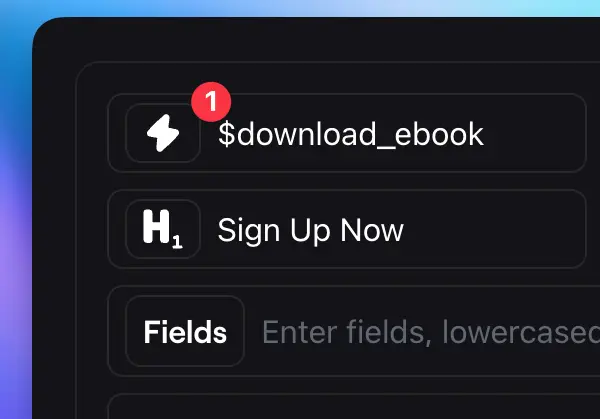
Give your form a unique, descriptive name that reflects its purpose. This name is the event Bento records on each submission, and you'll use it later to trigger automations 1.
For example, if you're creating a form for an ebook download, you might call the event download_ebook.
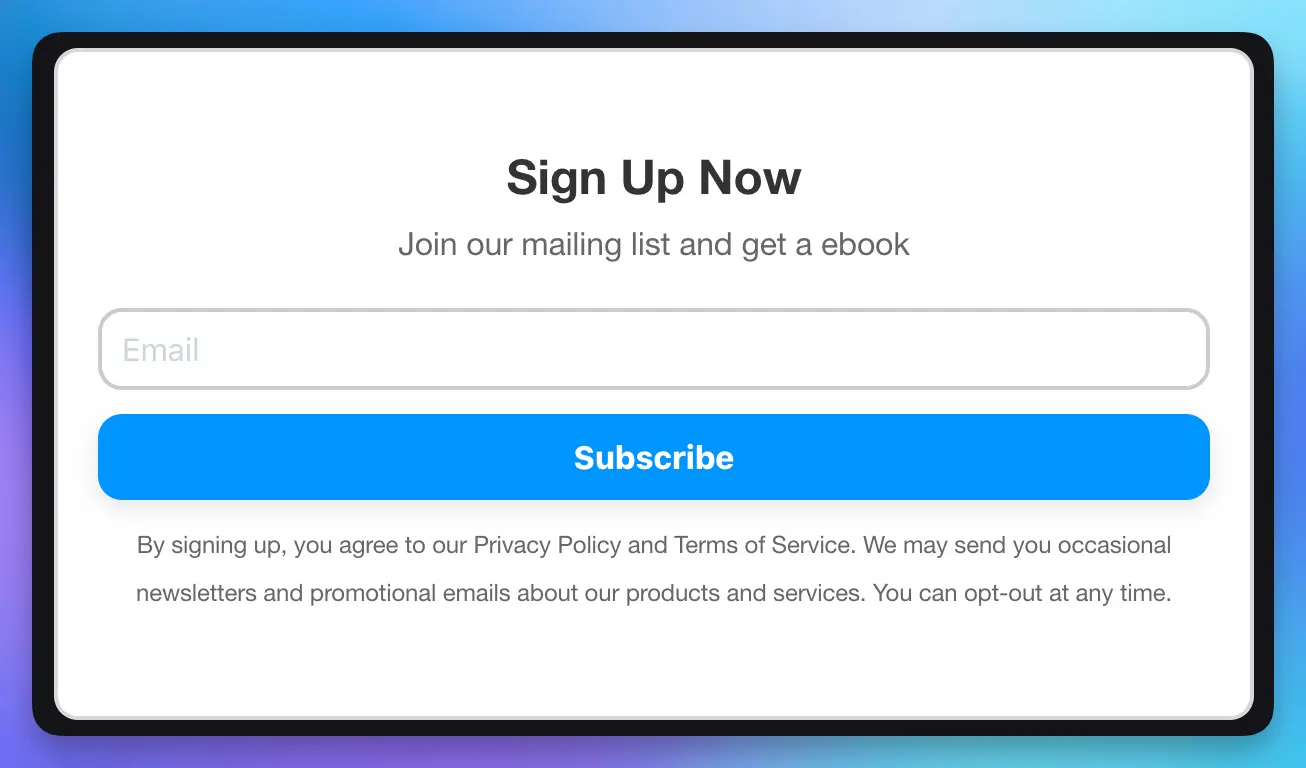
The form builder includes an AI designer. Describe how you want your form to look, and it makes the changes for you.

For example, type "make the form look like a Stripe designer designed it" and click "make changes". The form updates in seconds.
You can keep giving commands to fine-tune the design. Change the title, update the button text, or adjust any other part of the form with a short instruction.
Once you're happy with how your form looks, copy the code to your clipboard and paste it into your website.
When someone fills out your form, you'll usually want to automate an action, like sending an email or triggering another event.
Create a new Bento flow and add a rule that selects the custom event matching your form 1. This is the event name 2 you chose when setting up your form.
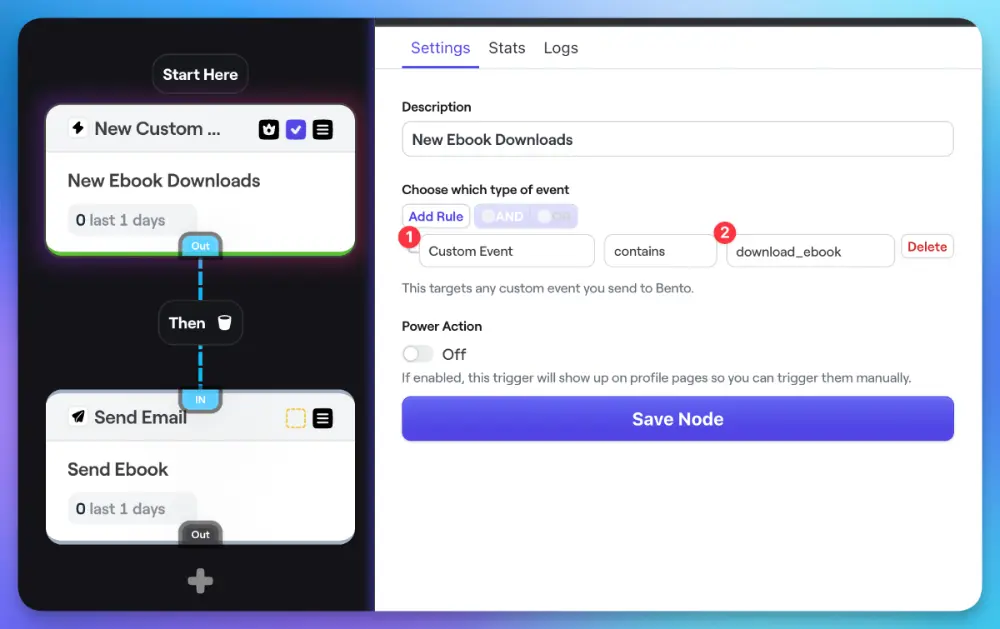
For the ebook download example, you would select any custom event called download_ebook.
Then add the actions you want to run when that event fires, like sending an email to the person who submitted the form.
Save your flow and publish it. From then on, anyone who fills out your form receives the email automatically.
Recap
To build and connect a form:
- Choose a unique event name for your form
- Use AI commands to design your form
- Copy and paste the form code into your website
- Set up an automation flow to trigger actions when the form is submitted
If you have questions, ask in the Bento Discord.