



Bento SendOwl Integration



Overview
The Bento SendOwl Integration offers two core functionalities:
- Event Tracking: Automatically track key SendOwl events for your subscribers
- Data Management: Update user data and record lifetime value (LTV) metrics
Requirements
- An approved Bento account
- A SendOwl account
- The Bento tracking script - for user tracking on the website
- Webhook endpoint - Syncs purchase events to Bento
Tracking Script Installation
1
Head to the
tracking script area from the SendOwl menu.2
Copy the Tracking Script. If the snippet contains a
site_uuid placeholder, replace it with your site UUID from the Bento Teams screen.3
In the Global Header text field paste in the tracking code. Double check that it looks the same as what you copied from Bento.
4
Click
save. You should see the tracking code saved in the Global Header field.Webhook Setup
1
In the SendOwl menu select
Settings2
In the top tabs click
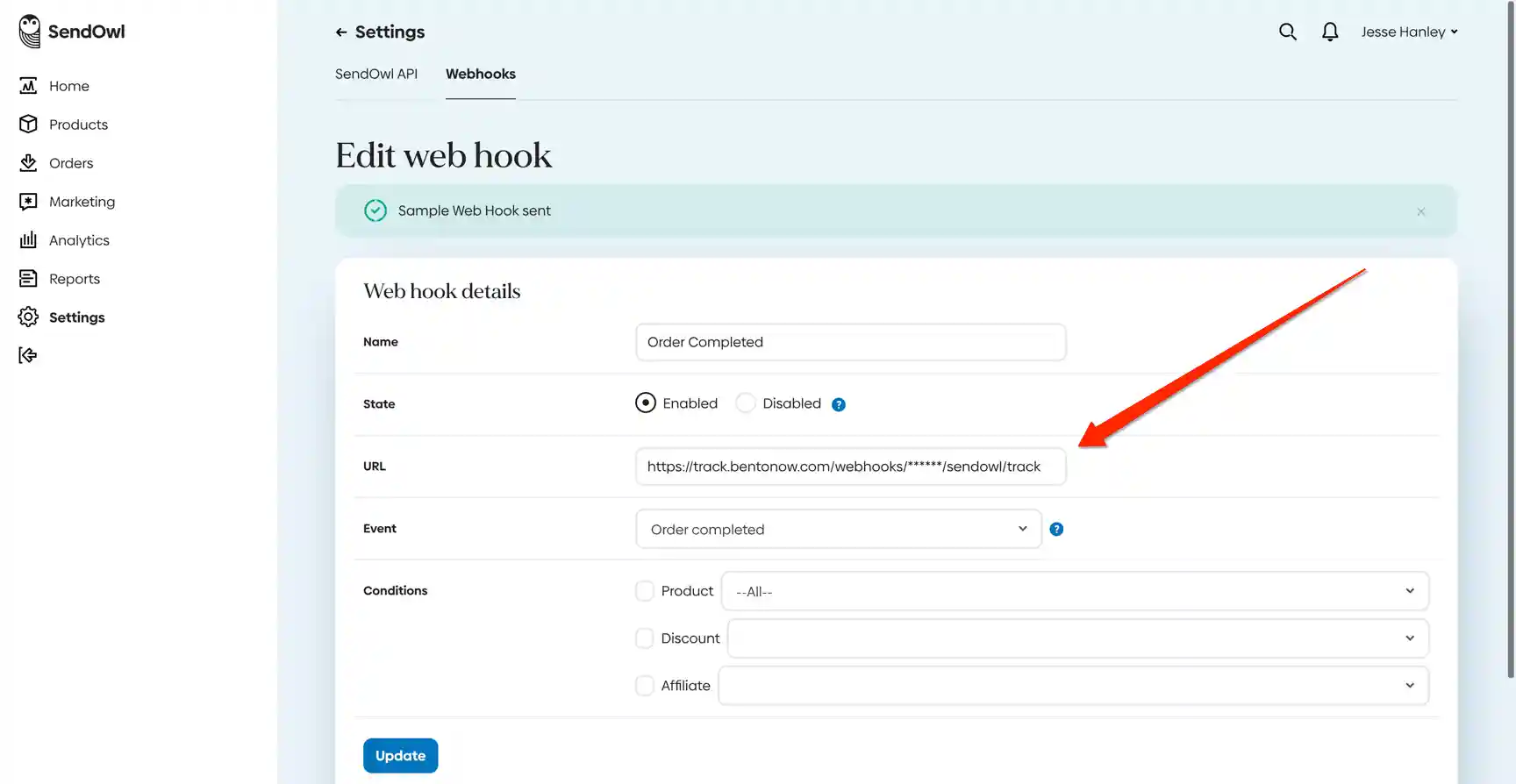
webhooks, and click Create Webhook button to create a new webhook.3
Give the webhook a name, like
Bento or something similar.4
Make sure the state is set to
enabled5
In the Webhook URL field, paste the Bento Webhook URL, be sure to substitute the
site_uuid with the correct site you want to send events to from your account teams screen if it's not already there.6
In the
events drop down, select order new7
Save your new connection
How the connection works
When a user browses your SendOwl site, the tracking script sends $page events to Bento. Once that user authenticates, those events are attributed to the correct subscriber. When the user makes a purchase, the webhook you configured sends the order to Bento as a purchase event. You can use these purchase events to track LTV and trigger automations and flows.