



Bento SMS & WhatsApp Integration
This guide covers setting up SMS and WhatsApp messaging in Bento Chat, including provider configuration, consent management, and testing.



Legal Disclaimer
Important: This documentation does not constitute legal advice. You are responsible for ensuring compliance with all applicable laws and regulations regarding SMS marketing in your region. Consult with legal counsel before implementing SMS marketing campaigns. Customers predominantly use Bento for conversational marketing (such as support or sales) and not SMS broadcast marketing.
Pricing
While Bento Chat is included free in all plans, you still need an account with an SMS provider such as Twilio to send SMS messages. Costs vary depending on your provider.
Overview
Bento's conversational marketing features enable:
- Two-way SMS and WhatsApp conversations
- One-off SMS campaigns (BETA)
- Automated messaging workflows through Flows
Setup Guide
Prerequisites
- An approved Bento account
- An active SMS/WhatsApp provider account (Twilio, 360Dialog, or Bandwidth)
- A valid phone number for messaging
- A plan for managing contact consent (through fields or tags)
1
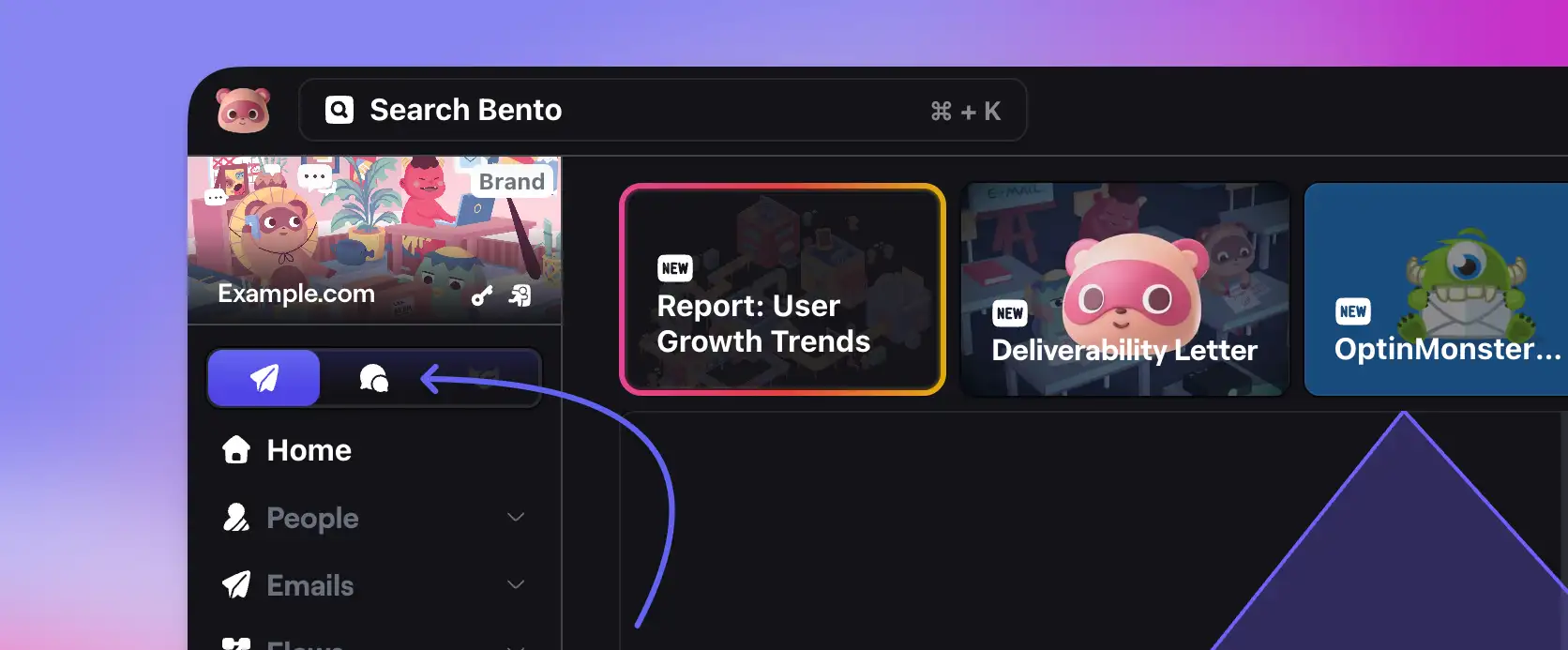
- Log into your Bento account
- Navigate to Bento Chat
- A new web inbox will be automatically created
2
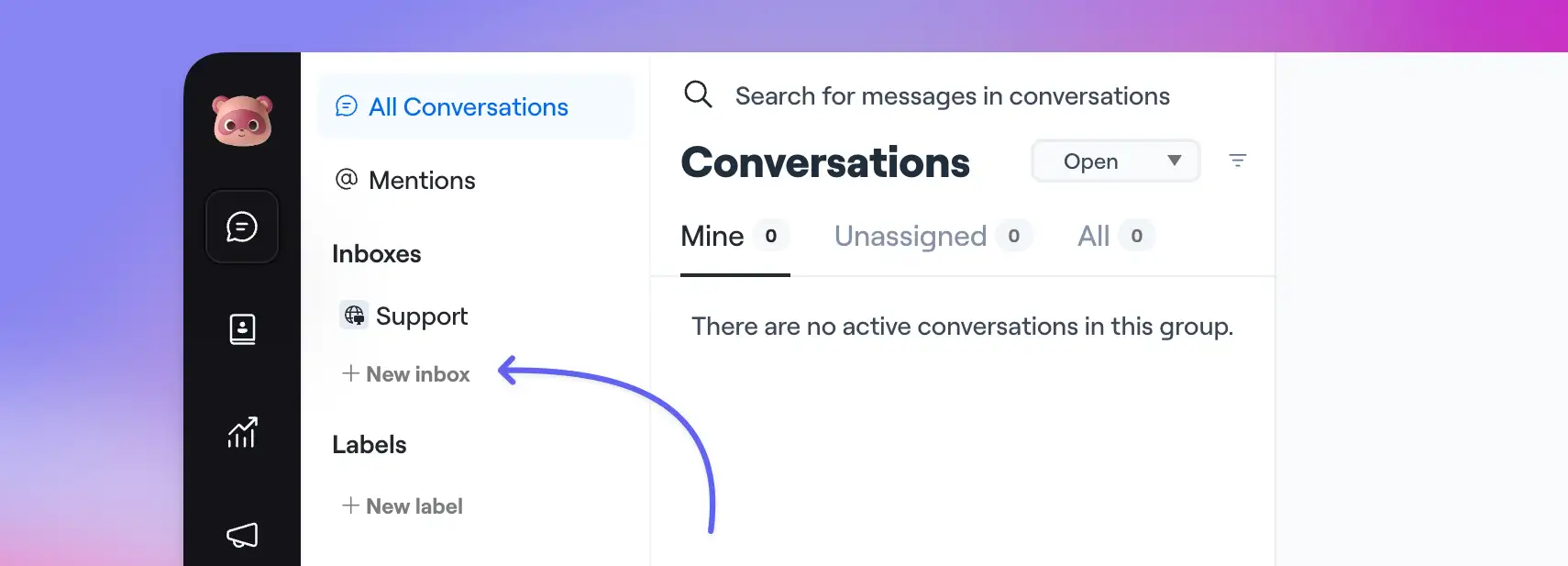
- Click "Add New Inbox"
- Choose between SMS or WhatsApp
- Select your provider (Twilio recommended)
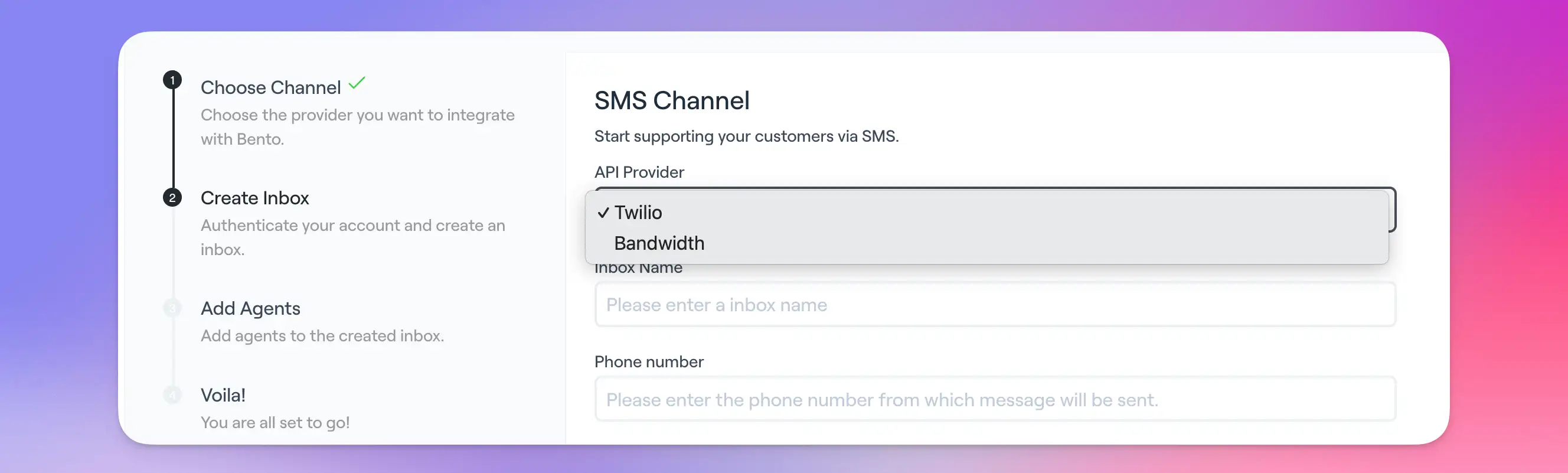
- Enter the api keys from your chosen provider
- Assign the user accounts "agents" you want to receive the chats
Supported Providers:
- SMS: Twilio, Bandwidth
- WhatsApp: Twilio, 360Dialog
International customers may need to contact provider support for local phone numbers.
3
For Twilio:
- Log into Twilio Console
- Navigate to Phone Numbers > Active Numbers
- Select your messaging number
- Configure webhook URL:
Code
https://api.bentonow.com/v1/sms/callback/{your-unique-id}

For Other Providers: Contact support for specific configuration instructions.
Consent Management
Requirements
Consent is absolutely required! Keep the consent on file (in Bento or elsewhere) for at least the statute of limitations under applicable SMS marketing laws (e.g., four years under the TCPA).
- Explicit written consent before sending marketing messages
- Clear opt-out instructions in messages
- Consent records that include:
- Timestamp of consent
- Method of consent
- Terms agreed to
If you are not tracking consent, then do not use this feature.
Storing Consent
We highly suggest using custom fields in Bento to store consent. Current options:
- Custom fields in Bento
- External storage system
Native consent management coming soon in next Bento SMS version
Message Management
Testing Your Setup
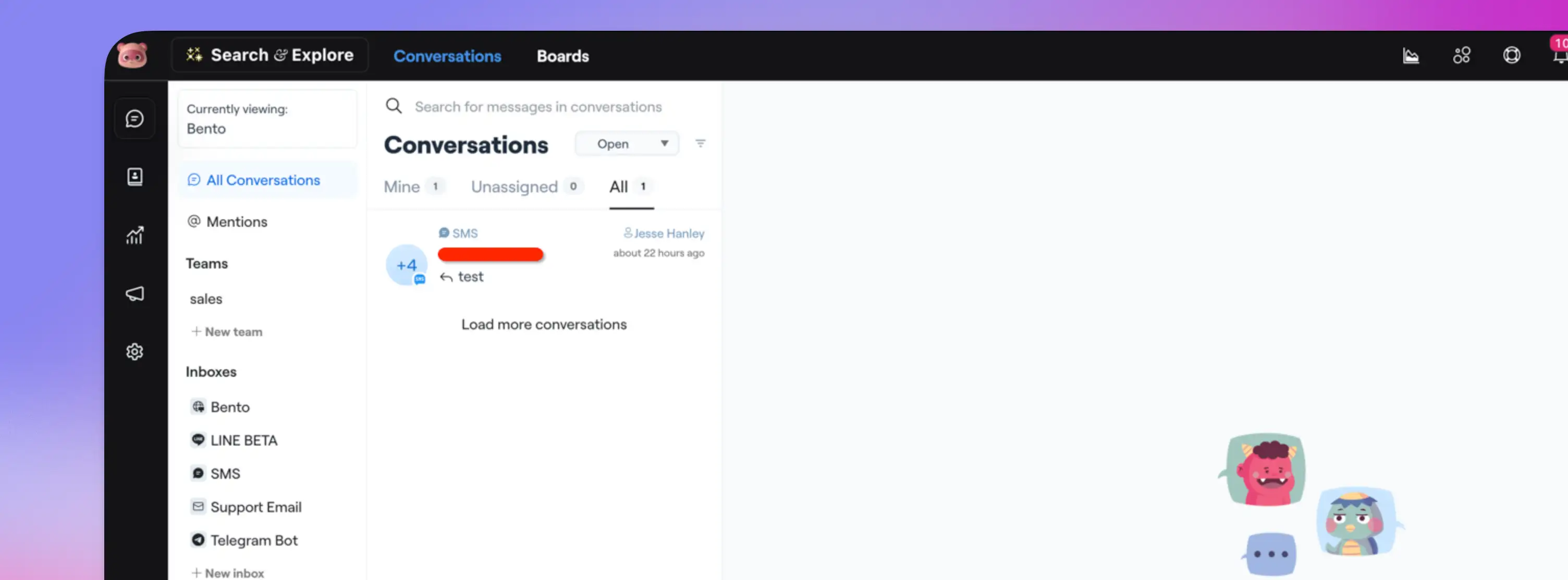
- Send test message to your configured number
- Check inbox for received message
- Verify two-way communication
Unsubscribe Handling
Two Unsubscribe Paths:
- Global Unsubscribe (https://help.twilio.com/articles/223134027-Twilio-support-for-opt-out-keywords-SMS-STOP-filtering)
- Handled by provider (e.g., Twilio)
- Triggered by "STOP" or "UNSUBSCRIBE"
- Blocks all future messages via Twilio directly (may not show in Bento)
- Bento Subscription Status
- Shared with email preferences
- Checked in workflows
You can use a Flow to tag a user when they reply STOP or UNSUBSCRIBE to filter them out of future automations or campaigns.
Automation Features
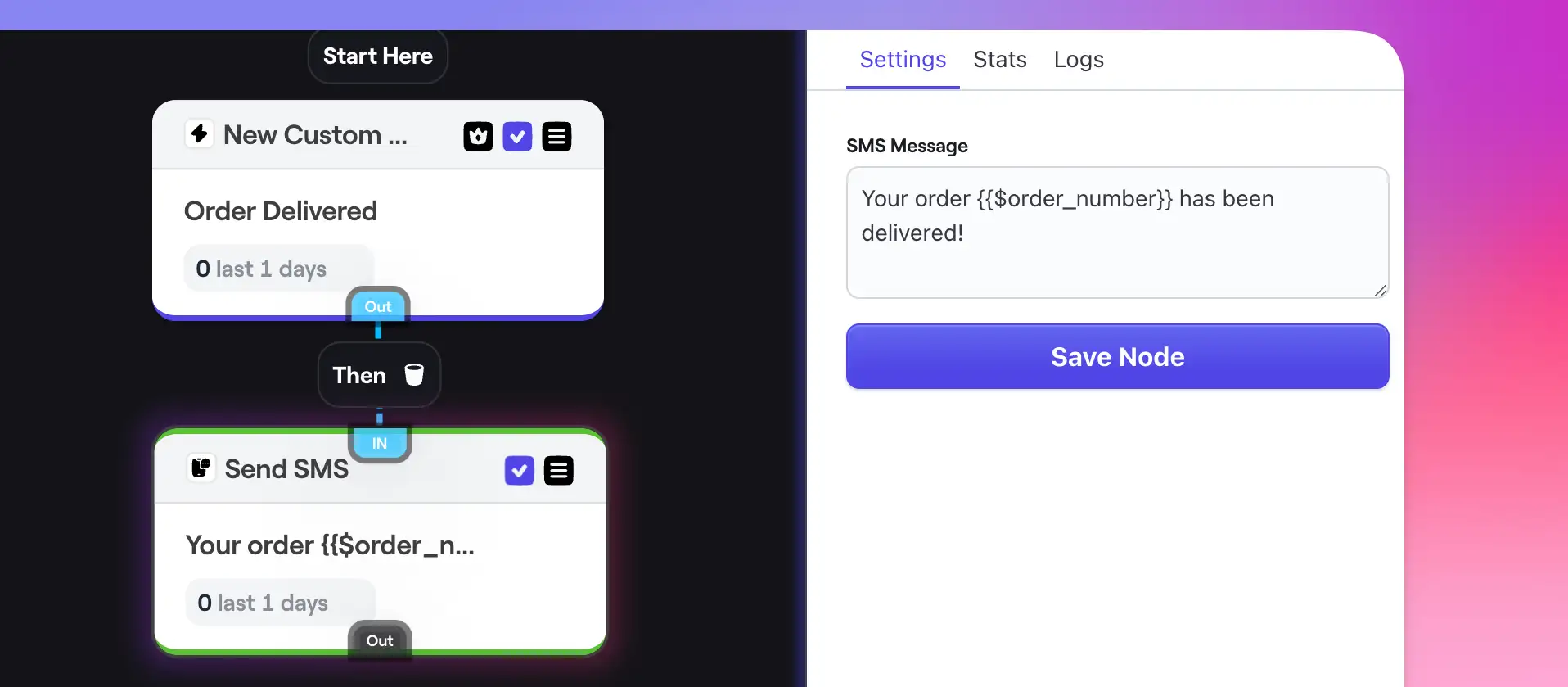
Flow Integration
- Navigate to Flows
- Add "Send SMS" action
- Configure message content
- Set targeting conditions
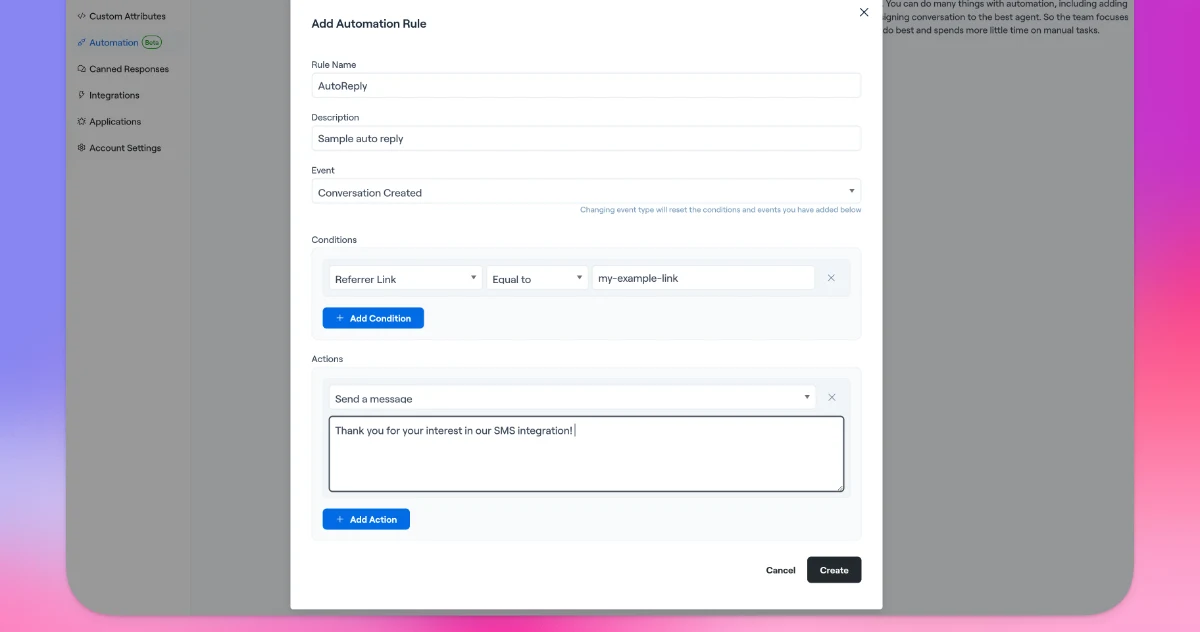
Automated Replies
- Go to Bento Chat
- Go to Settings
- Select Automation (Beta)
- Create response rules
- Set trigger conditions
Campaign Management
One-off Campaigns (BETA - NOT RECOMMENDED FOR LARGE CAMPAIGNS OVER 1000 RECIPIENTS)
- Import contacts to Bento Chat
- Requires email and phone number
- Tag contacts for targeting
- Navigate to Campaigns
- Create new campaign
- Select target audience
- Schedule delivery
Simultaneous delivery for all recipients. Test thoroughly with small groups first.
Best Practices
High Value Messages
- Keep messages concise
- Include clear call-to-action
- Always provide opt-out instructions
Troubleshooting
Common Issues
Messages Not Sending
- Verify provider credentials
- Check webhook configuration
- Confirm consent status
Support
Contact Bento support via:
- Email: support@bentonow.com
- For a quicker response, ask in the Bento Discord