



Bento WordPress Integration
This guide covers installing and configuring the Bento WordPress plugin, the events it tracks, and how to verify everything is working.



Overview
The Bento WordPress plugin tracks events from popular WordPress plugins, updates subscriber data, and records lifetime value (LTV) in your Bento account.
The plugin supports multiple popular WordPress platforms and plugins including:
- WooCommerce and WooCommerce Subscriptions
- LearnDash
- Easy Digital Downloads
- Elementor Forms
- WPForms
- Bricks Forms - Bricksbuilder Bento Guide
- ThriveLeads
- SureCart
Configuration
Requirements
- Active Bento account with API keys
- Latest version of WordPress
- Any supported integration plugin
Installation Steps
Download the Plugin from github here as a zip
Install the plugin by uploading the downloaded zip file.
If you have not already, generate your Bento API keys from your teams screen.
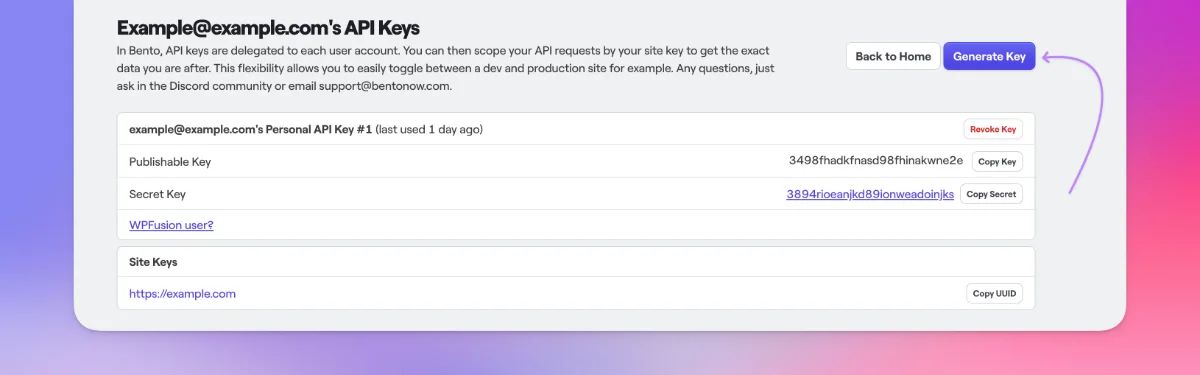
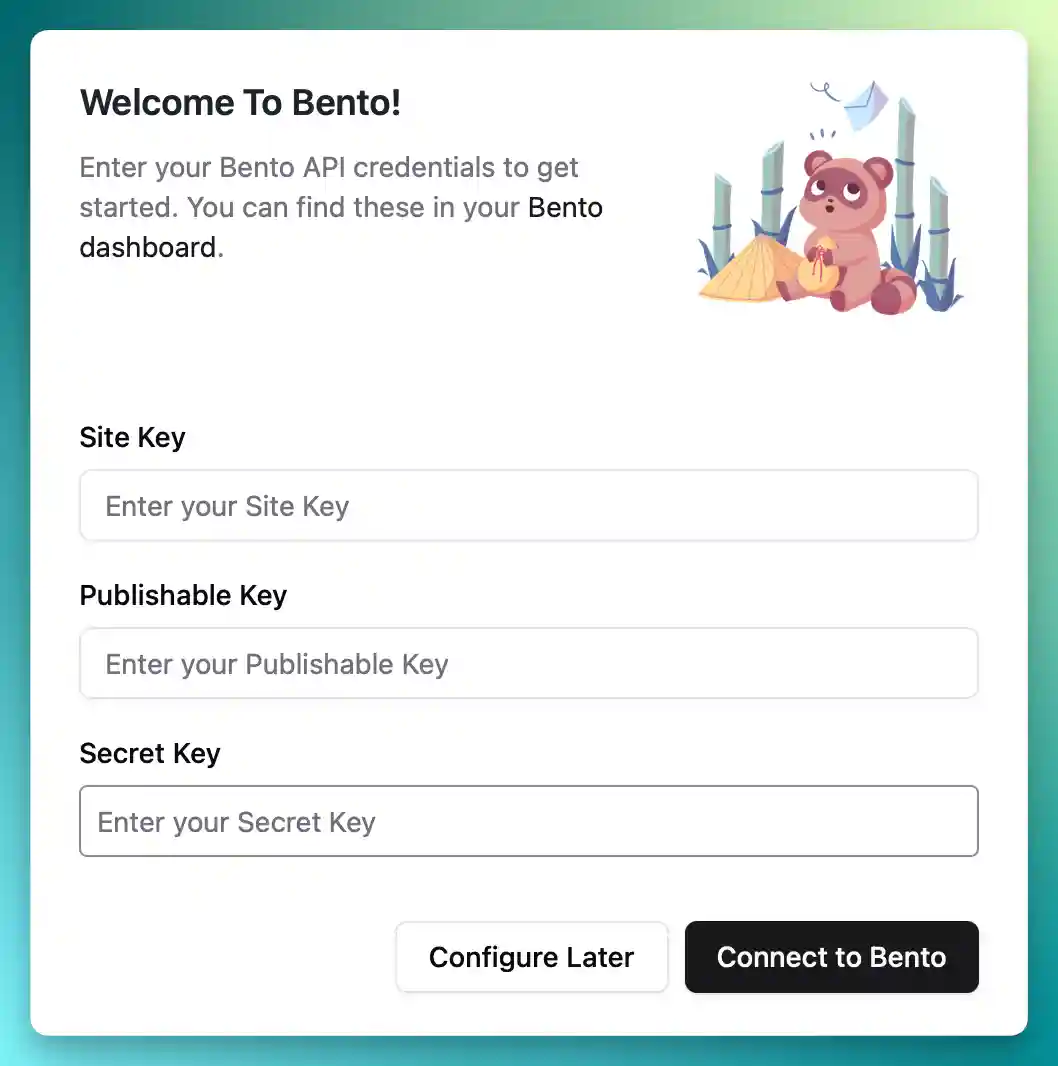
Enter the Bento keys into the plugin. Copy and paste as you go.
Once you have entered your keys, click the Connect To Bento button to save your settings.
If the connection is successful, you should see a green success message and the rest of the settings will become visible.
You can come back and adjust the connection settings at any time.
If you would like to log user activity such as page views, enable Site Tracking. This injects a small JavaScript snippet into your WordPress site.
Some additional logging options are available, such as turning on debugging for the plugin that will log a debug stream to the WordPress debug.log file. Please be aware that this can be quite verbose and you should consider purging the log after you are done. Not recommended to leave on in production.
You can enable email logging, which is useful for debugging and testing when using Bento transactional emails.
This feature allows you to see what emails are being sent and provides insights if you have questions
about email interactions. However, it's not recommended to leave this feature on in production.
The emails will be visible under the mail logs menu item, and you can clear them anytime using the Clear Logs button.
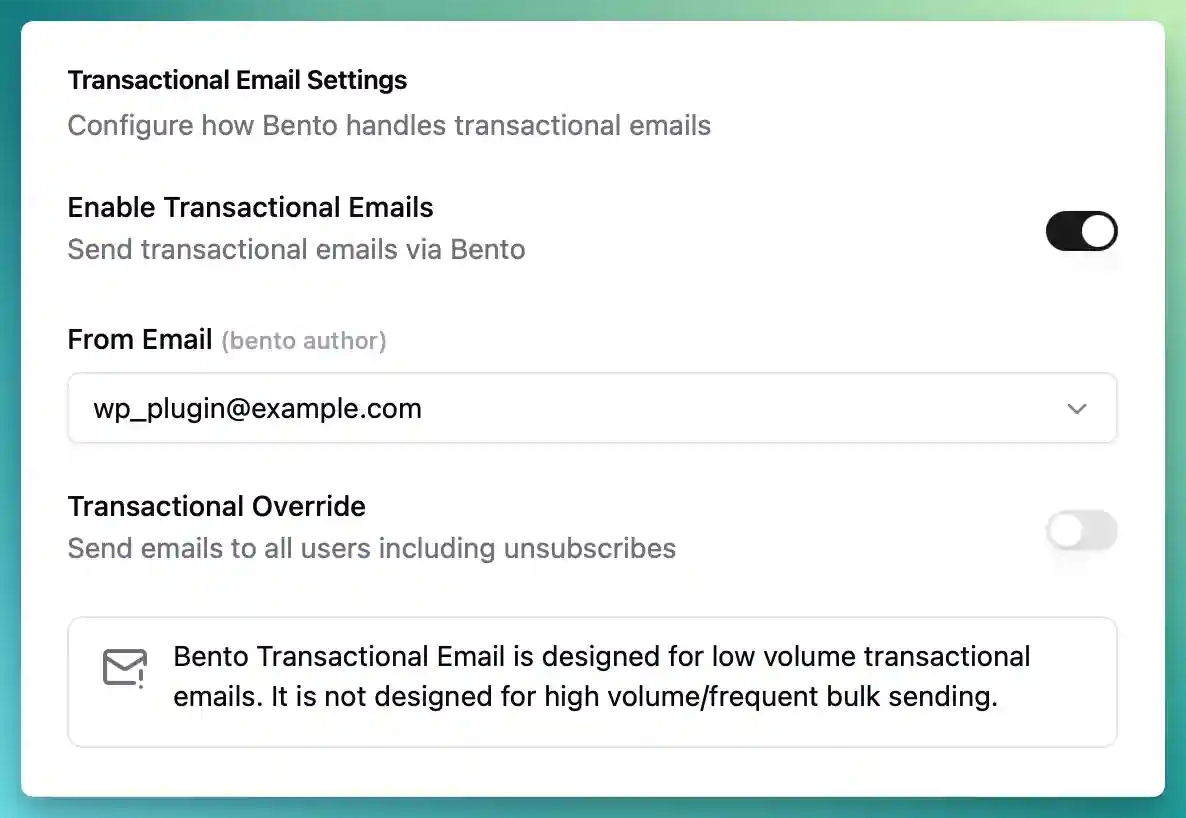
Bento supports transactional emails. This is designed for low volume transactional sending. It is not designed for high volume/frequent bulk sending.
Once enabled, select the Bento Author from the drop down menu. After this, you are ready to send.
The final option lets you send transactional emails to unsubscribed users. Proceed with caution. If recipients label your messages as spam, your sending reputation is impacted.
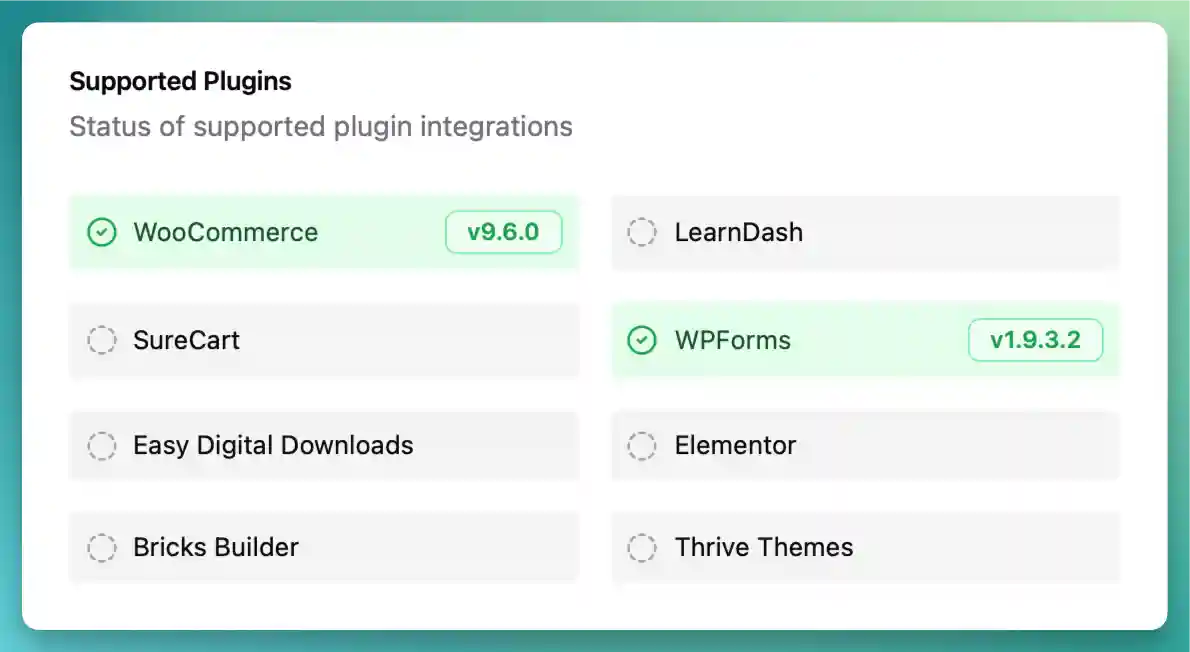
Integration Status
The Bento WordPress plugin now supports displaying the status of integrations on the plugin settings page. When the WordPress plugin detects that a supported plugin is installed, a green tick will appear next to the plugin name. If the plugin is not installed or not supported, the plugin name will be displayed in gray.
Caching Configuration
Bento's script is personalized and dynamic, changing on every page load to power on-page personalization. When using caching plugins like WP Rocket or SuperCache, you must:
- Exclude the custom Bento.js script from caching
- Ensure dynamic content is properly handled
Event Tracking
WooCommerce Events
The following WooCommerce Events are triggered and sent to Bento.
| Event Name | Description |
|---|---|
$OrderPlaced | Triggered when an order is placed. Updates person's LTV with order total |
$OrderRefunded | Triggered on full/partial refund. Deducts refunded amount from person's LTV |
$OrderCancelled | Triggered when order status changes to "cancelled" |
$OrderShipped | Triggered when order status changes to "completed" |
WooCommerce Subscriptions Events
| Event Name | Description |
|---|---|
$SubscriptionCreated | New subscription created (any status) |
$SubscriptionActive | Subscription becomes active (e.g., after trial) |
$SubscriptionCancelled | Subscription cancelled by admin |
$SubscriptionExpired | Subscription reaches end of term |
$SubscriptionOnHold | Subscription status changes to "on-hold" |
$SubscriptionTrialEnded | Trial period ends |
$SubscriptionRenewed | Renewal payment processed |
Sure Cart
| Event Name | Description |
|---|---|
$CheckoutConfirmed | Triggered when a checkout is completed (paid). Contains all metadata from the checkout and user info. |
Easy Digital Downloads
| Event Name | Description |
|---|---|
$DownloadPurchased | Triggered when a payment is complete for a download. |
$DownloadDownloaded | Triggered when a download is downloaded by a user. |
$DownloadRefunded | Triggered when a download is refunded, either partially or full. |
LearnDash
| Event Name | Description |
|---|---|
$CourseCompleted | Triggered when a user completes a course. |
$LessonCompleted | Triggered when a user completes a lesson. |
$TopicCompleted | Triggered when a user completes a topic. |
$QuizCompleted | Triggered when a user completes a quiz. |
$EssayGraded | Triggered when a user's essay has been graded. |
$AssignmentApproved | Triggered when a user's assignment has been approved. |
$AssignmentNewComment | Triggered when a new comment is added to a user's assignment. |
$UserEnrolledInCourse | Triggered when a user enrolls in a course. |
$UserEnrolledInGroup | Triggered when a user is enrolled in a group. |
$UserPurchasedCourse | Triggered when a user purchases a course. |
$UserPurchasedGroup | Triggered when a user purchases a group. |
$UserEarnedNewCertificate | Triggered when a user earns a new certificate. |
$CourseNotCompleted | Triggered when a user has not completed a course within a specified time frame. |
$LessonNotCompleted | Triggered when a user has not completed a lesson within a specified time frame. |
$TopicNotCompleted | Triggered when a user has not completed a topic within a specified time frame. |
$QuizNotCompleted | Triggered when a user has not completed a quiz within a specified time frame. |
$DripContent | Triggered when content becomes available to a user due to drip-feeding. |
Elementor Forms
- Custom event names configurable per form
- Set up through "Actions After Submit" in form settings by selecting
Bento
WPForms
- Events use form name as event name
- Automatic tracking for all form submissions
ThriveLeads
- Events follow format:
$thrive.optin.{form_identifier} - Example:
$thrive.optin.fancy-optin-shortcode-form-v6n9w1
Event Testing
To verify events are being tracked correctly:
- Complete an action that should trigger an event
- Check the Bento dashboard for the event

- Verify all expected data is present
User history and LTV
Monitor and manage user data including:

- Purchase history
- Event timeline
- Subscription status
- Form submissions
Subscriber Management
The plugin can synchronize new WordPress users into Bento:
- New users are added as Bento subscribers automatically.
- Form submissions and activity data can tag users for segmentation and targeted messaging.
- Tags can be used to build lists for campaigns aimed at specific audience segments.
