



Bento Stripe Integration



Overview
This integration connects your Stripe account to Bento. It tracks key Stripe events for your subscribers, updates their data and lifetime value (LTV), and lets you trigger workflows from those events.
Requirements
- Active Bento account with a site created
- Active Stripe account
Installation Steps
You can connect Stripe to Bento in a few steps.
To install the Stripe App, you must login to Bento, select your team, and from your home page look for the Apps in the left side menu. It has a little power plug icon.Bento Teams
You will be prompted to sign into Stripe if you are not already 1.
Stripe will ask if you want to 3 connect to Backpack Internet (Bento). It will also ask you to select the Stripe
account you would like to connect with 2.

Once you have clicked connect you will be redirected back to Bento to the Connect Stripe screen. You will see the
Bento Site you connected 1, the stripe account you connected 2 with and a settings and disconnect buttons 3.

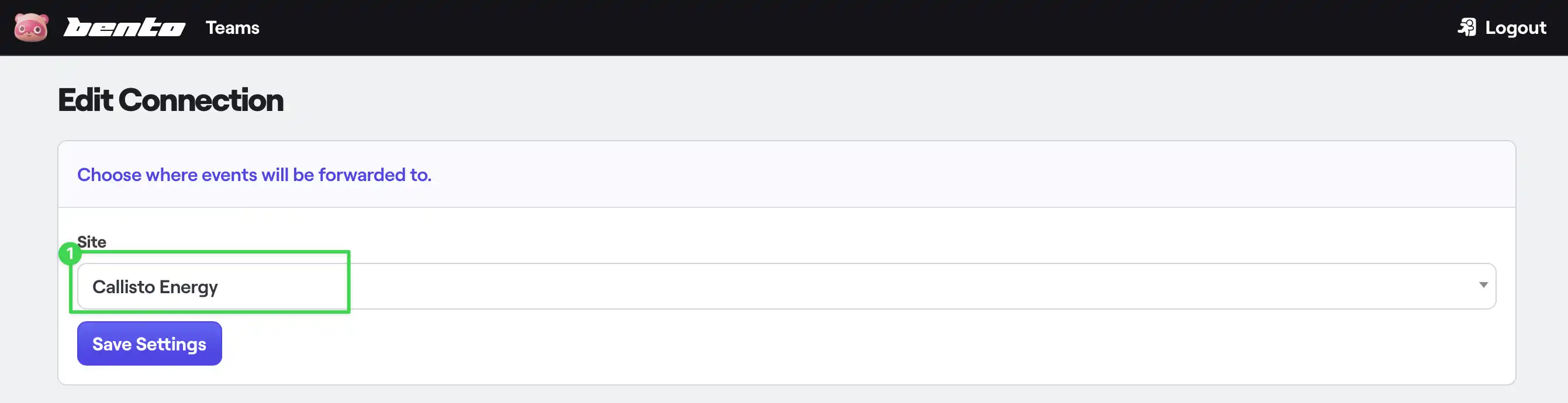
Clicking settings will provide you with a drop down list of Bento sites in your account 1. Should you need to
change the site you want Stripe events to appear in you would make that change here.
How the connection works
When purchase events happen inside Stripe, Bento receives them through Stripe's webhook system and records them as events on the matched subscriber. The common event you will look for is $ChargeSucceeded, which means Stripe processed a payment successfully.
Stripe events become useful in Bento because they can:
- update a subscriber's lifetime value
- trigger post-purchase workflows
- add or remove customer lifecycle tags
- personalize follow-up emails with payment or product details
- help you segment customers by purchase behavior
Event and field mapping
- Name
$ChargeSucceededevent- Description
Payment succeeded in Stripe. Use this to trigger receipts, onboarding, post-purchase education, and customer tagging.
- Name
emailstring- Description
The customer email Bento uses to match or create the subscriber.
- Name
details.value.amountinteger- Description
Payment amount in cents when available.
- Name
details.value.currencystring- Description
Payment currency, such as
USD.
- Name
details.stripe_customer_idstring- Description
Stripe customer identifier when available in the event payload.
- Name
details.stripe_charge_idstring- Description
Stripe charge identifier when available in the event payload.
Workflow recipes
New customer onboarding
- Trigger on
$ChargeSucceeded. - Add a
customertag. - Set a field such as
last_purchase_at. - Add the person to a customer onboarding sequence.
High-value customer alert
- Trigger on
$ChargeSucceeded. - Check whether
details.value.amountis above your threshold. - Send a workflow webhook to your CRM or Slack bridge.
- Add a tag such as
vip_customer.
Failed or missing sync review
If a payment appears in Stripe but not Bento:
- Confirm the Stripe account is still connected in Bento.
- Check that the payment has a customer email.
- Inspect the latest event in Bento for the subscriber email.
- Reconnect Stripe if the account authorization changed.
- Contact support with the Stripe charge id and Bento site UUID.
Troubleshooting
| Problem | What to check |
|---|---|
| Event is missing | Confirm the Stripe account is connected to the right Bento site. |
| Subscriber was not matched | Make sure the Stripe customer or payment has an email address. |
| Workflow did not start | Confirm the workflow trigger is watching the exact event name, such as $ChargeSucceeded. |
| LTV looks wrong | Inspect the event details and currency. Amounts are commonly stored in cents. |
| You changed Stripe accounts | Open the integration settings and reconnect the correct account. |
Sample Event
The screenshot below shows how a synced Stripe payment appears as an event on a subscriber in Bento, including the event name and the details Stripe sent with it.
