



Export Data from Klaviyo for Bento
This guide will help you export all the contacts, tags, segments, and custom fields you need from Klaviyo so you can import them into Bento.
Exporting your data is safe and does not affect your live Klaviyo account. You can continue sending emails while you prepare your migration.
Prerequisites
What You'll Export
- Members (Contacts)
- Segments & Lists
- Custom Fields
- Automations (Flows, for mapping later)
Step-by-Step Export Process
Go to Klaviyo and log in with your credentials. Navigate to the 1 Audience section and select 2 Lists & Segments.
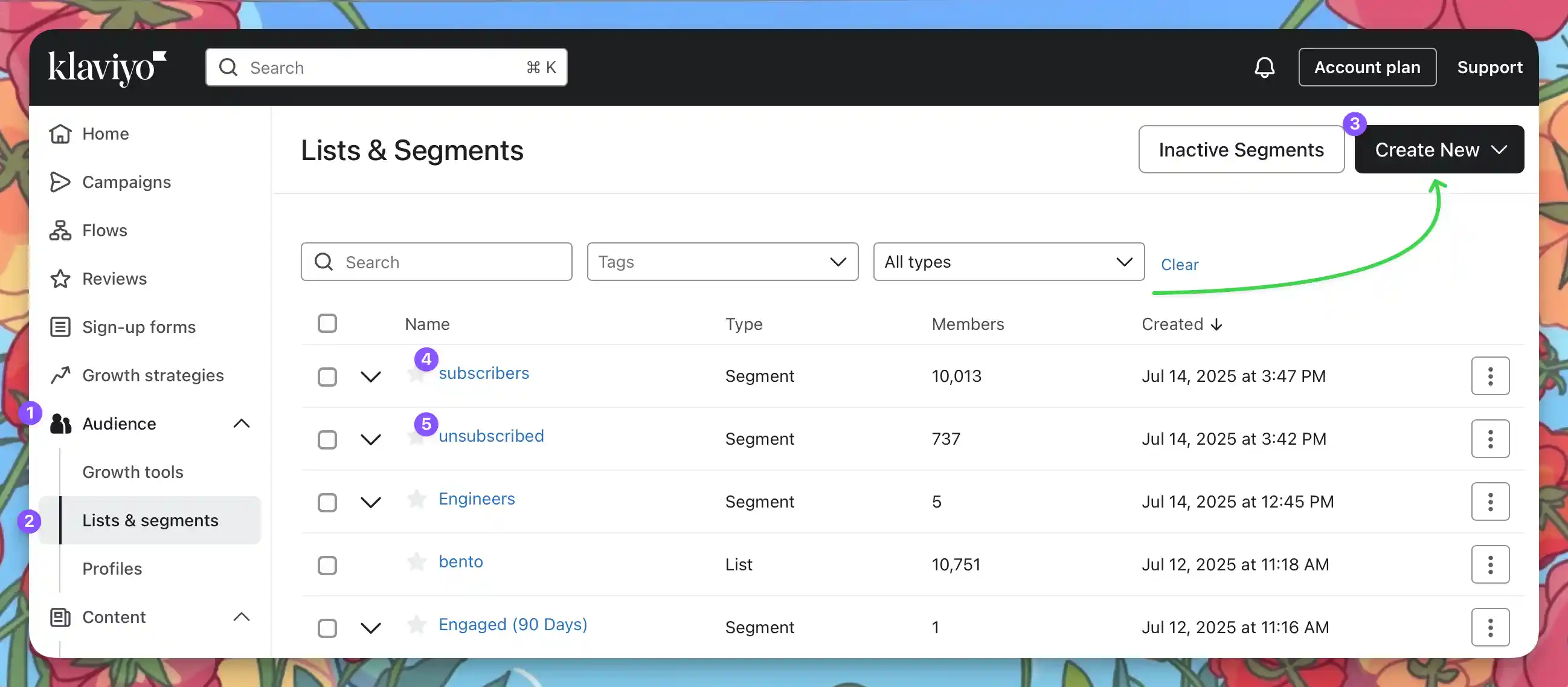
The simplest way to create the required CSVs for import into Bento is to create two segments. One contains all your subscribers. The other contains all your unsubscribed contacts.
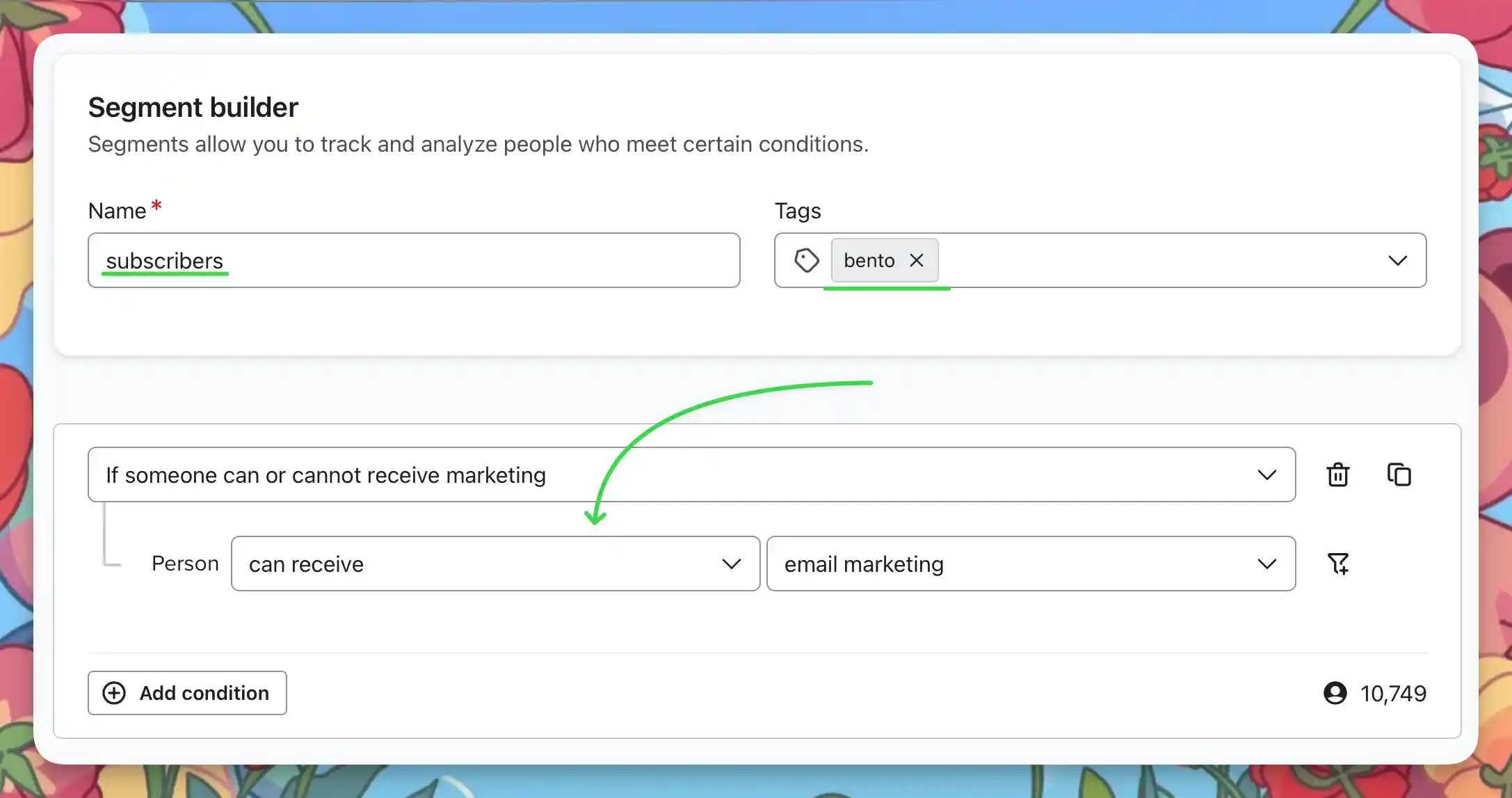
First, create the subscriber segment:
- Click the
3Create Newbutton and selectCreate Segment. - In the segment builder, enter "subscriber" as the name.
- Select the tags that contain your subscribers.
- Filter on
if someone can or cannot receive marketingand personcan receive|email marketing. - Click the
Create Segmentbutton in the upper right corner.
If you have many tags, and wish to keep them separated, repeat this process for each tag, and we recommend naming the segment with the tag name.
When importing to Bento you will need to import all unsubscribed contacts, so create a second segment for them:
- Repeat the steps above, but enter "unsubscribed" as the name.
- Select the same tags that you selected for subscribers.
- Filter on
if someone can or cannot receive marketingand personcannot receive|email marketing. - Click the
Create Segmentbutton in the upper right corner.
Failing to import an unsubscribed list into Bento may result in emailing contacts who have unsubscribed from your list, which hurts your sending reputation.
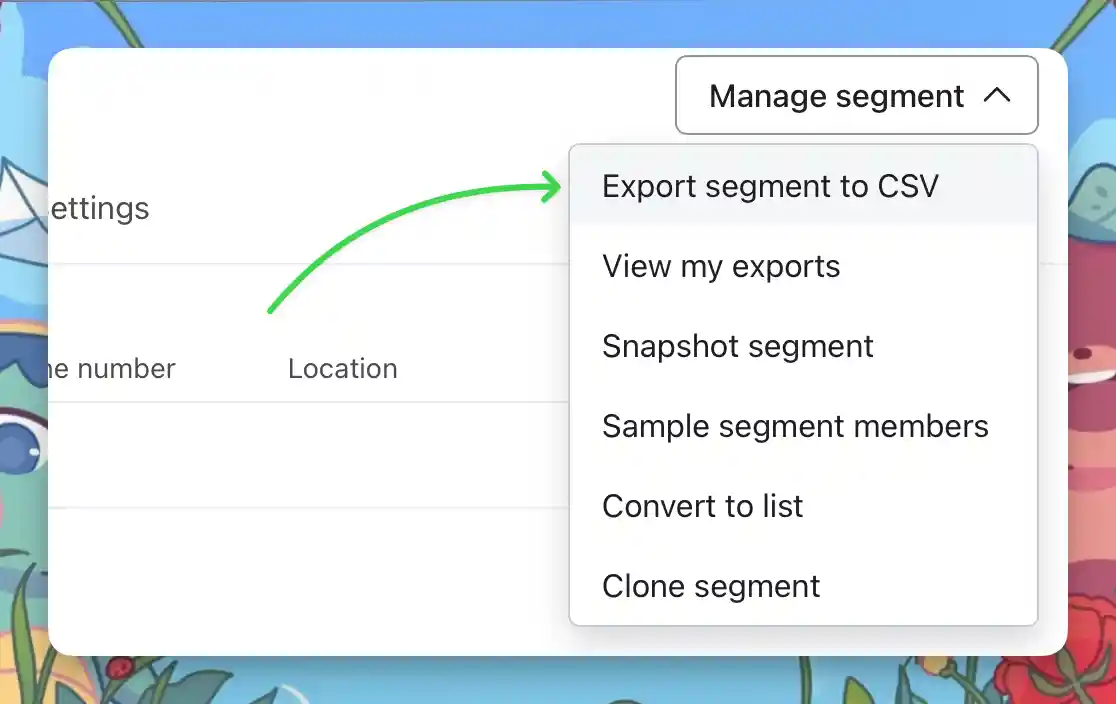
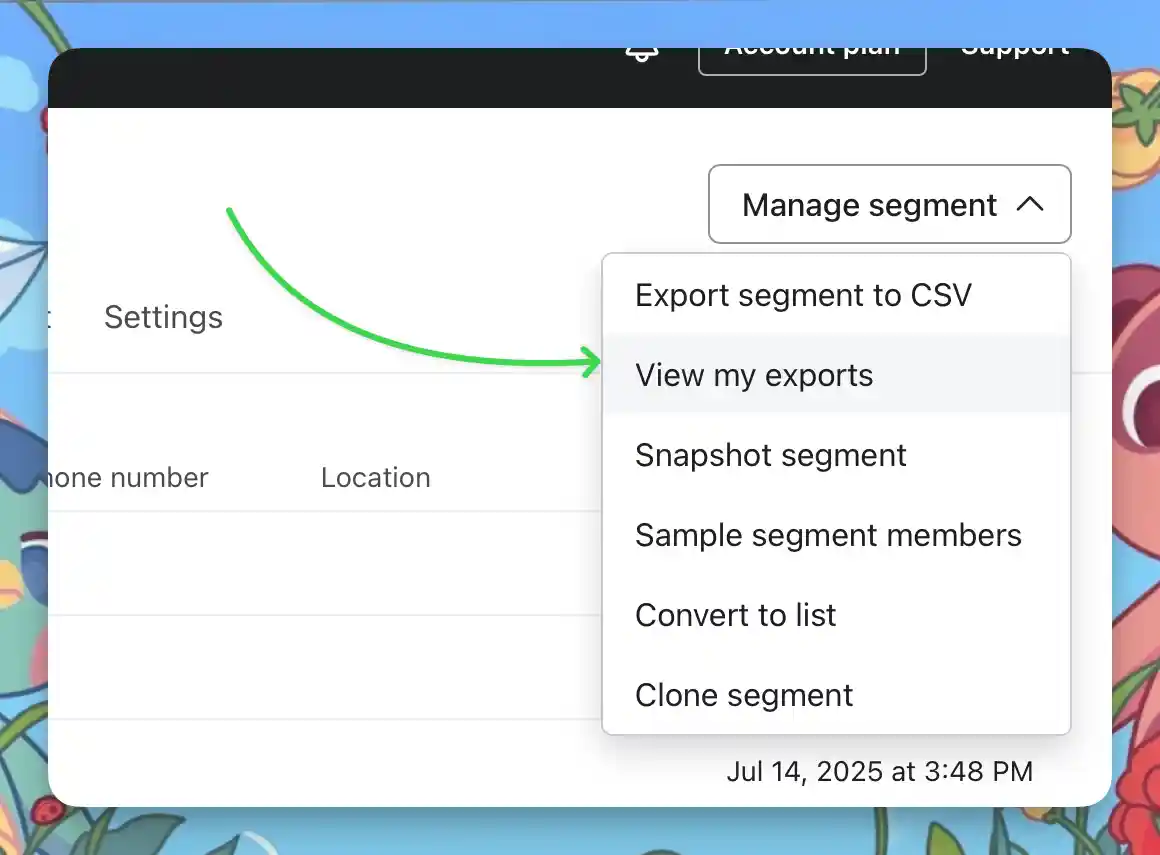
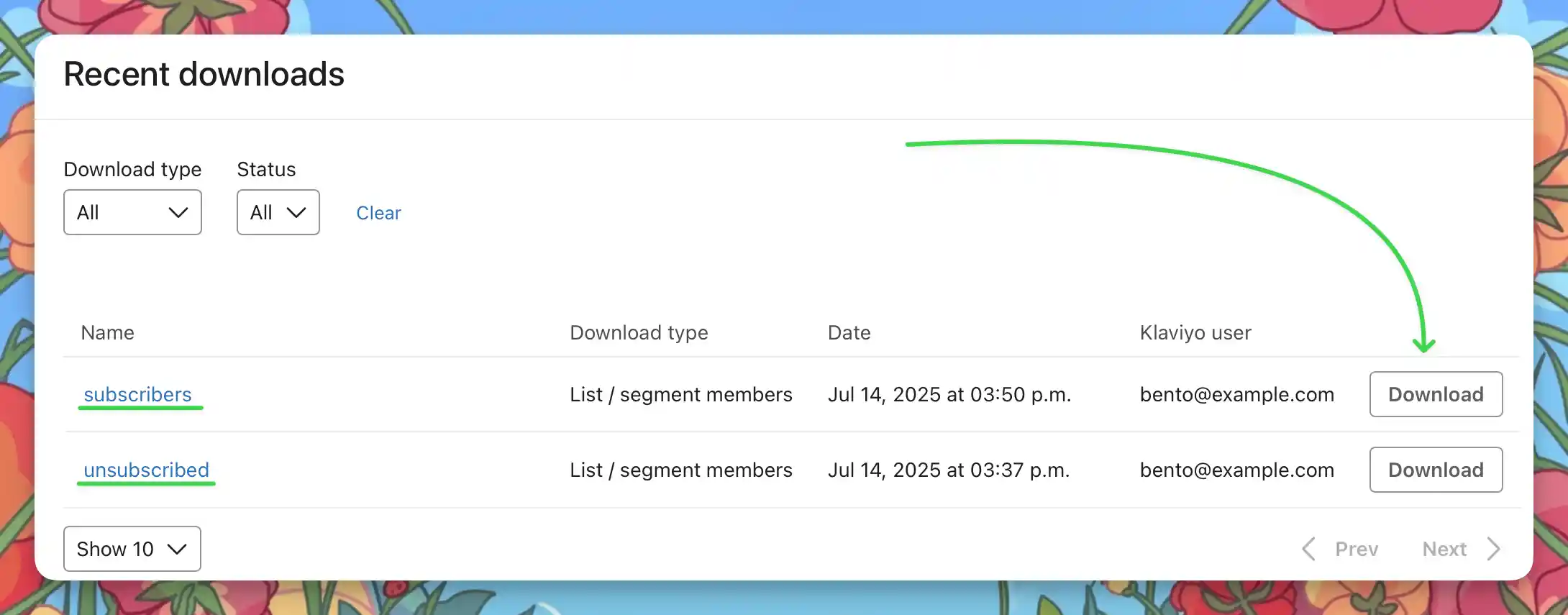
From any of your segments click the Manage Segment button and select View my exports.
This lists all the exports you have created for all segments. Click on the download button to download them.
Make sure you name each export when you download it according to the segment name. Such as subscribers.csv & unsubscribes.csv
Custom fields are included in your segment export CSV. Review the CSV columns to see all custom fields in use.
For automations (Flows), there is no direct export. Take screenshots or document the steps for reference when rebuilding in Bento Flows.
Merge & Clean
- Open each of the exported CSV in your spreadsheet tool.
- Rename columns to Bento‑friendly names (
email,first_name,tags, etc.), ensure they match in each csv file. - Comma‑separate multiple tags (e.g.
vip,customer). - Delete any blank or irrelevant columns. Bento ignores missing headers but a tidy sheet is easier to debug.
- Save each CSV as a separate file.
Column Map Example
| Tags | Remove Tags | First Name | Last Name | |
|---|---|---|---|---|
| jesse@bentonow.com | customer, mql | lead | Jesse | Hanley |
After Exporting
- Double-check your CSV files for all required data (contacts, tags, segments, custom fields).
- Organize your files and screenshots for easy access during the Bento import process.
- If you need to clean up or rename tags/fields, do so in the CSV before importing to Bento.
Troubleshooting
- Make sure you exported from the correct section (Lists, Segments, Profiles).
- Check your downloads folder for the CSV file.
- Open CSVs in a spreadsheet app to review all columns.
- Lists over 100k contacts? Klaviyo may split exports into multiple CSVs. Download every part and combine before merging statuses.
- You may need Owner, Admin, or Analyst permissions to export data.
- Try a different browser or clear your cache.
- Contact Klaviyo support if you still can't export.
Critical Terminology: Klaviyo → Bento
Here's how Klaviyo terms map to Bento. Keep this table handy while you rename columns and rebuild segments and Flows.
| Klaviyo Term | Bento Term | What It Actually Means |
|---|---|---|
Profile | Person | A human with an email address |
Tag (Property) | Tag | Labels for categorization. In Bento, tags are first-class and support advanced logic |
Segment | Segment | Dynamic groupings based on field values, tag presence, events, and more |
Custom Property | Field | Custom data attached to a Person, like first_name, plan, or last_seen_at |
Campaign | Broadcast | A one-time email sent to a specific group or segment |
Flow | Flow | If-this-then-that workflows. Bento Flows support triggers, delays, branching, and more |
Event | Event | Track pageviews, clicks, custom behavior. All events are first-class in Bento |
Liquid | Liquid | Dynamic content via Liquid templating |
How Bento Models Your Data
Klaviyo organizes contacts as Profiles inside Lists and Segments. Bento keeps everyone in a single People table. Each person carries their tags, fields, and full event history, and you build segments and Flows on top of that.
Final Thoughts
This migration will take you 2–4 hours of actual work.
Remember:
- Take screenshots before changing anything
- Test with your own email first
- Keep Klaviyo running during transition
- Document everything for your future self
That's why we keep it running until we're sure.
Quick Reference
During Migration:
- Check Bento's Dashboard
- Monitor deliverability score
- Test forms and integrations
- Send one test email after changes
Before Canceling Klaviyo:
- All Profiles are imported
- All automations rebuilt
- List is warmed up on Bento
- Forms all working
- Deliverability metrics stable
Emergency Contacts:
- Bento Support: Discord | support@bentonow.com
- Status Page: status.bentonow.com
- API Docs: docs.bentonow.com
Next Steps
Your CSV files are ready. Follow the import guide to bring your contacts into Bento, starting with your unsubscribed list.