



Export Data from Mailchimp for Bento
This guide will help you export all the lists, tags, segments, and custom fields you need from Mailchimp so you can import them into Bento.
Exporting your data is safe and does not affect your live Mailchimp account. You can continue sending emails while you prepare your migration.
Prerequisites
Access to your Mailchimp account
Required permissions to export data
A place to save your exported CSV files
Spreadsheet software to review and clean up CSVs
What You'll Export
- Subscribers (Lists/People)
- Tags
- Segments (Saved Searches/Lists)
- Custom Fields
- Automations (for mapping later)
Step-by-Step Export Process
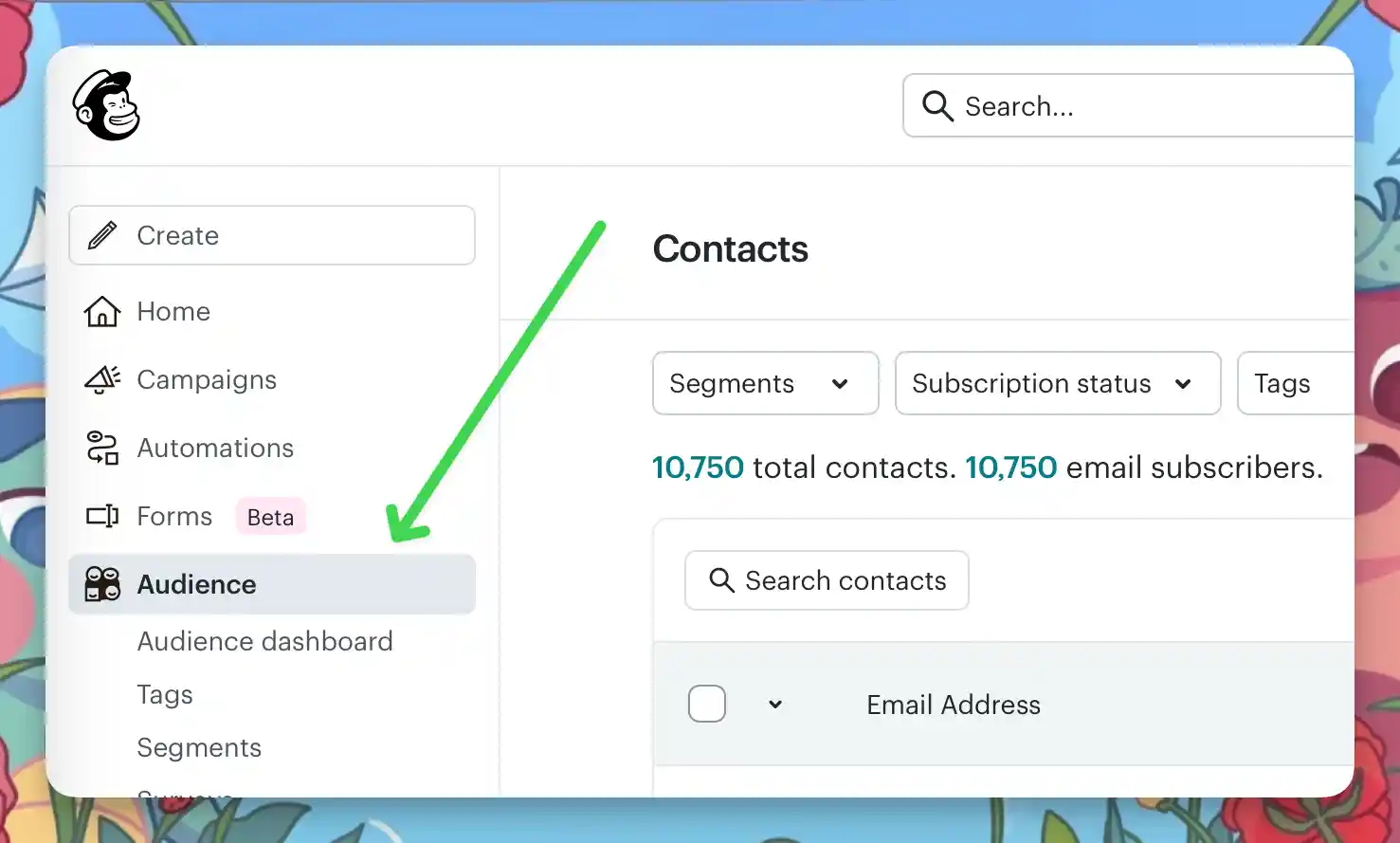
Go to Mailchimp and log in with your credentials. Once you are logged in, navigate to the Audience section.
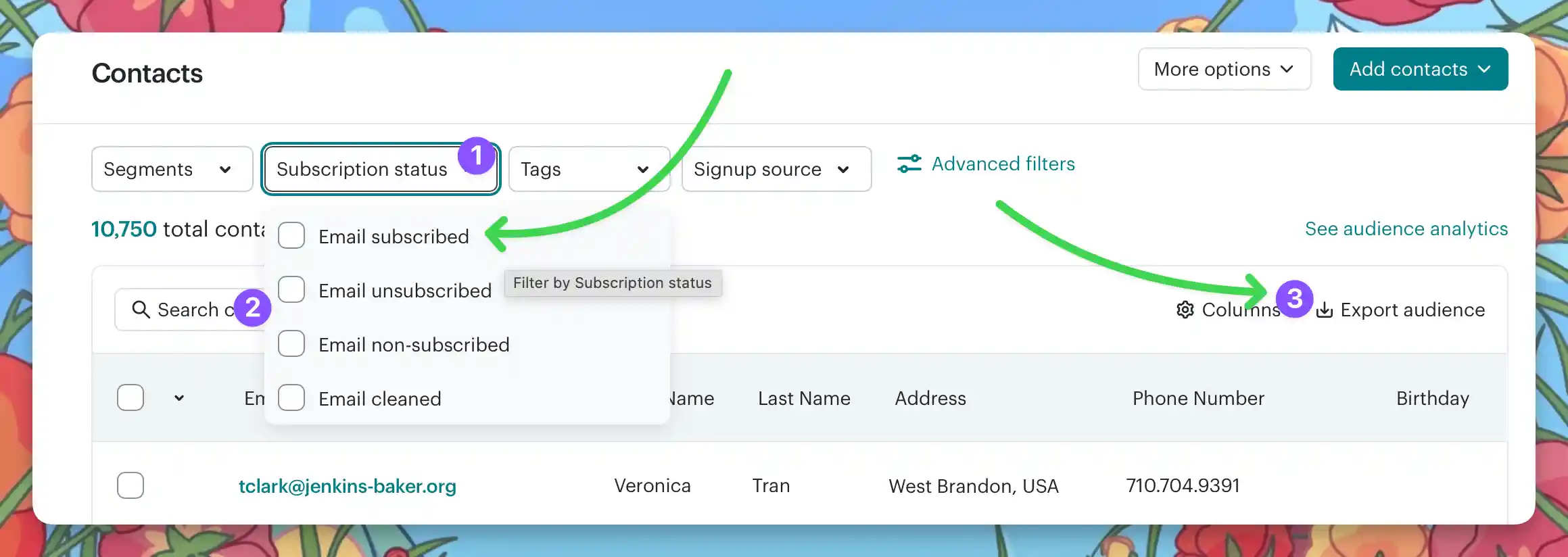
From your audience screen, click Subscription Status select box and check each of the status options.
Click Export Segment.
Mailchimp will generate a ZIP that contains a CSV for each of those statuses that has a contact assigned to it and email you a link to download it.
The downloaded ZIP will contain similar CSV files to the following:
- subscribers_email*.csv · unsubscribed_email*.csv · non_subscribed_email*.csv · cleaned_email*.csv
Tags are included in your audience export CSVs. Review the CSV columns to see all tags in use.
If you use a lot of tags, consider cleaning up or renaming them in Mailchimp before export. Bento segments via Tags, so a tidy tag list makes migration easier. Reach out to support via Discord if you have questions, or want advice on how to clean up your tags.
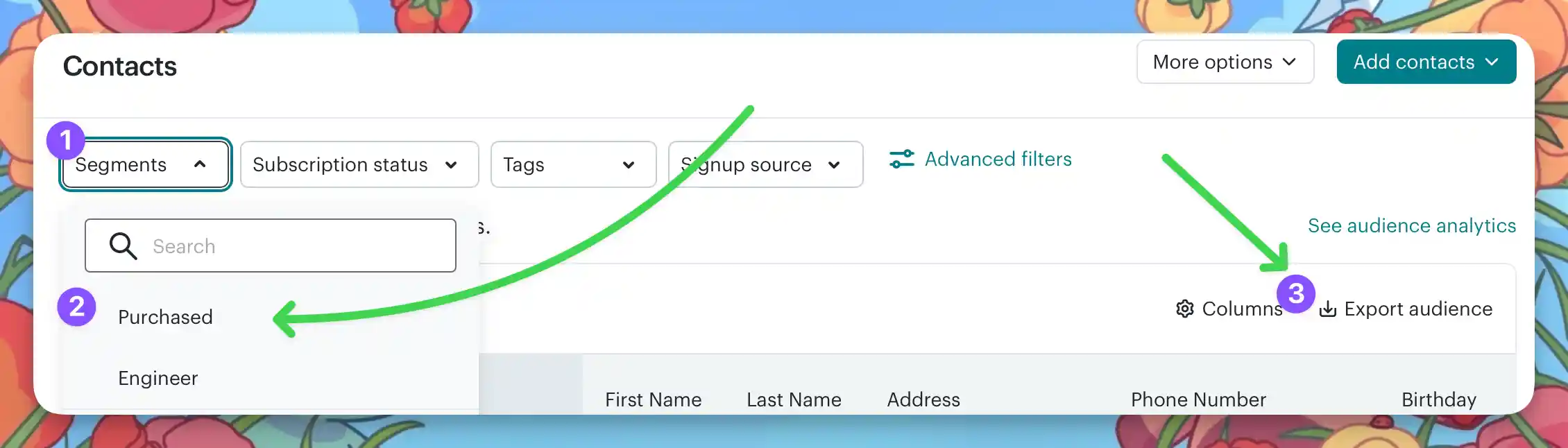
In Audience, click Segments.
For each segment, export the contacts using the export option.
Bento segments via Tags, so you won't be importing these lists. They are for reference and QA purposes only.
Custom fields (called Merge Tags in Mailchimp) are included in your audience export CSV. Review the CSV columns to see all custom fields in use.
For automations, go to Automations.
There is no direct export, but you can screenshot or document the steps for reference when rebuilding in Bento Flows.
Merge & Clean
- Open each of the exported CSV in your spreadsheet tool.
- Rename columns to Bento‑friendly names (
email,first_name,tags, etc.), ensure they match in each csv file. - Comma‑separate multiple tags (e.g.
vip,customer). - Delete any blank or irrelevant columns. Bento ignores missing headers but a tidy sheet is easier to debug.
- Save each CSV as a separate file.
Column Map Example
| Tags | Remove Tags | First Name | Last Name | |
|---|---|---|---|---|
| jesse@bentonow.com | customer, mql | lead | Jesse | Hanley |
After Exporting
- Double-check your CSV files for all required data (contacts, tags, groups, custom fields).
- Organize your files and screenshots for easy access during the Bento import process.
- If you need to clean up or rename tags/fields, do so in the CSV before importing to Bento.
Troubleshooting
- Make sure you exported from the correct section (Audience, Tags, Groups).
- Check your downloads folder for the CSV file.
- Open CSVs in a spreadsheet app to review all columns.
- Lists over 100k contacts? Mailchimp may split exports into multiple CSVs. Download every part and combine before merging statuses.
- You may need admin permissions to export data.
- Try a different browser or clear your cache.
- Contact Mailchimp support if you still can't export.
Critical Terminology: Mailchimp → Bento
Mailchimp and Bento name things differently. Here's how the terms map so you know what to look for in Bento:
| Mailchimp Term | Bento Term | What It Actually Means |
|---|---|---|
Contact | Person | A human with an email address |
Audience | (none) | Bento has a single People table. Use tags + segments instead of siloed lists |
Tag | Tag | Labels for categorization. In Bento, tags are first-class and support advanced logic |
Group | Tag or Segment | Depending on behavior, use a dynamic Segment or a static Tag in Bento |
Merge Field | Field | Custom data attached to a Person, like first_name, plan, or last_seen_at |
Campaign | Broadcast | A one-time email sent to a specific group or segment |
Automation | Flow | If-this-then-that workflows. Bento Flows support triggers, delays, branching, and more |
Goal | Event + Flow logic | Logic conditions inside a Flow that advance a user based on behavior |
Event Tracking | Event | Track pageviews, clicks, custom behavior. All events are first-class in Bento |
Merge Tags | Liquid | Dynamic content via Liquid templating |
How Bento Models Your Data
Mailchimp separates contacts into Audiences. Bento puts everyone in a single People table and uses tags and segments to group them. Each person also has an event history, like pageviews and email clicks, that you can segment on and trigger Flows from.
Final Thoughts
This migration will take you 2–4 hours of actual work.
Remember:
- Take screenshots before changing anything
- Test with your own email first
- Keep Mailchimp running during transition
- Document everything for your future self
That's why we keep it running until we're sure.
Quick Reference
During Migration:
- Check Bento's Dashboard
- Monitor deliverability score
- Test forms and integrations
- Send one test email after changes
Before Canceling Mailchimp:
- All Contacts are imported
- All automations rebuilt
- List is warmed up on Bento
- Forms all working
- Deliverability metrics stable
Emergency Contacts:
- Bento Support: Discord | support@bentonow.com
- Status Page: status.bentonow.com
- API Docs: docs.bentonow.com
Next Steps
Your Mailchimp exports are ready. Move on to the import guide. Import your unsubscribed and cleaned files before your subscribers.