



Export Data from Drip for Bento
This guide will help you export all the contacts, tags, segments, and custom fields you need from Drip so you can import them into Bento.
Exporting your data is safe and does not affect your live Drip account. You can continue sending emails while you prepare your migration.
Prerequisites
What You'll Export
- People (Contacts)
- Tags
- Segments (Saved Filters/Groups)
- Custom Fields
- Automations (for mapping later)
Step-by-Step Export Process
Go to Drip and log in with your credentials. Once logged in, navigate to the People section.
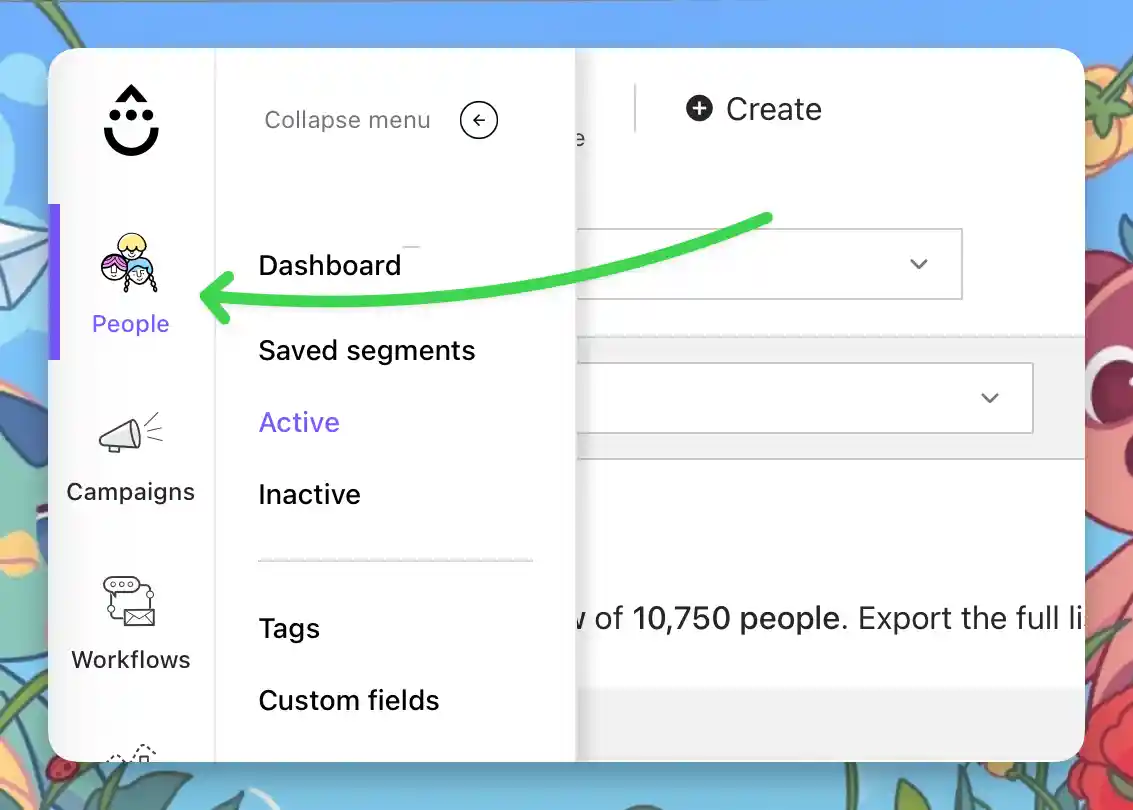
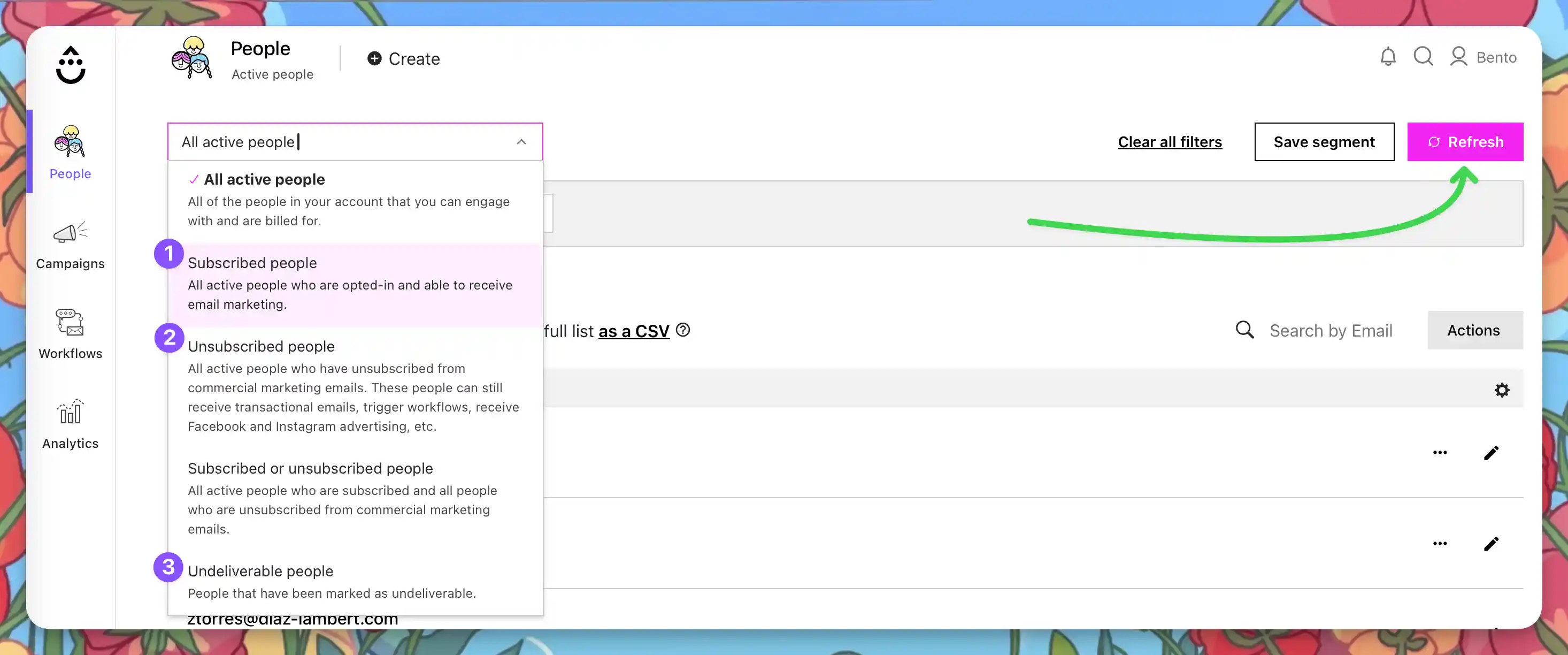
In the People section, use the filter options to select the specific type of contacts and export them. You will want to export the following:
Subscribed PeopleUnsubscribed PeopleUndeliverable People.
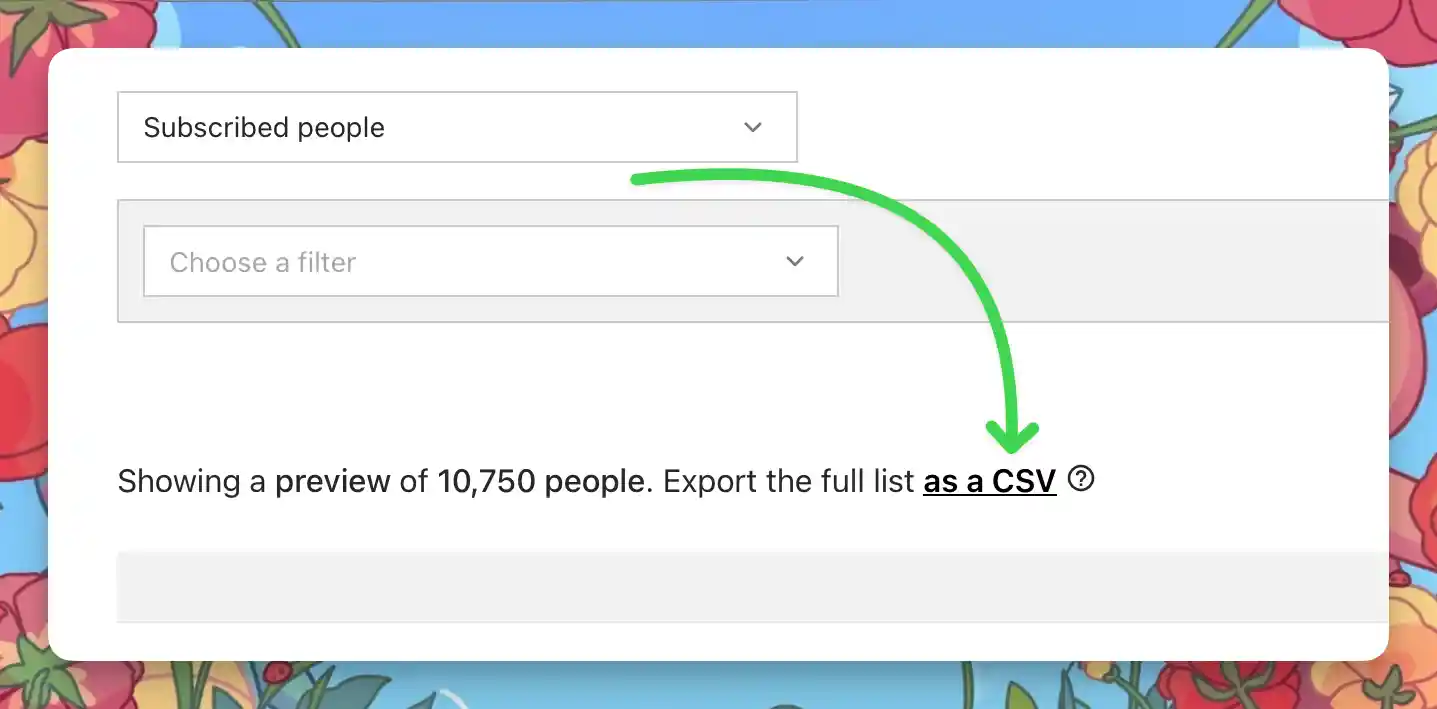
Click the Filter dropdown and select the type of contacts you want to export. You must click the Refresh Button after selecting the contact type. Then Click the export as CSV link.
Drip will generate a CSV file containing all visible contacts, their tags, and custom fields. A link to the file will be emailed to you or available for download in your account.
Tags are included in your People export CSV. Review the CSV columns to see all tags in use.
If you use a lot of tags, consider cleaning up or renaming them in Drip before export for easier migration. Bento segments via Tags, so a tidy tag list will help.
In People, use the filter builder to create any segments you want to export.
Export each segment as a CSV using the Actions dropdown.
Bento segments via Tags, so you may only need these for reference and QA purposes.
Custom fields are included in your People export CSV. Review the CSV columns to see all custom fields in use.
For automations (Workflows), there is no direct export. Take screenshots or document the steps for reference when rebuilding in Bento Flows.
Merge & Clean
- Open each of the exported CSV in your spreadsheet tool.
- Rename columns to Bento‑friendly names (
email,first_name,tags, etc.), ensure they match in each csv file. - Comma‑separate multiple tags (e.g.
vip,customer). - Delete any blank or irrelevant columns. Bento ignores missing headers but a tidy sheet is easier to debug.
- You will import both unsubscribed and bounced exports as unsubscribed contacts in Bento. If you wish to track them independently, you can tag them in the csv before importing.
- Save each CSV as a separate file.
Column Map Example
| Tags | Remove Tags | First Name | Last Name | |
|---|---|---|---|---|
| jesse@bentonow.com | customer, mql | lead | Jesse | Hanley |
After Exporting
- Double-check your CSV files for all required data (contacts, tags, segments, custom fields).
- Organize your files and screenshots for easy access during the Bento import process.
- If you need to clean up or rename tags/fields, do so in the CSV before importing to Bento.
Troubleshooting
- Make sure you exported from the correct section (People, Tags, Segments).
- Check your downloads folder for the CSV file.
- Open CSVs in a spreadsheet app to review all columns.
- Lists over 100k contacts? Drip may split exports into multiple CSVs. Download every part and combine before merging statuses.
- You may need admin permissions to export data.
- Try a different browser or clear your cache.
- Contact Drip support if you still can't export.
Critical Terminology: Drip → Bento
Drip and Bento share a lot of vocabulary, but a few terms differ. Here's the mapping:
| Drip Term | Bento Term | What It Actually Means |
|---|---|---|
Person | Person | A human with an email address |
Tag | Tag | Labels for categorization. In Bento, tags are first-class and support advanced logic |
Segment | Segment | Dynamic groupings based on field values, tag presence, events, and more |
Custom Field | Field | Custom data attached to a Person, like first_name, plan, or last_seen_at |
Campaign | Broadcast | A one-time email sent to a specific group or segment |
Workflow | Flow | If-this-then-that workflows. Bento Flows support triggers, delays, branching, and more |
Event Tracking | Event | Track pageviews, clicks, custom behavior. All events are first-class in Bento |
Liquid | Liquid | Dynamic content via Liquid templating |
How Bento Models Your Data
Like Drip, Bento is person-centric. Every contact lives in one People table with their tags, fields, and event history attached. Segments and Flows build on that data directly, and click and visit tracking happens automatically.
Final Thoughts
This migration will take you 2–4 hours of actual work.
Remember:
- Take screenshots before changing anything
- Test with your own email first
- Keep Drip running during transition
- Document everything for your future self
That's why we keep it running until we're sure.
Quick Reference
During Migration:
- Check Bento's Dashboard
- Monitor deliverability score
- Test forms and integrations
- Send one test email after changes
Before Canceling Drip:
- All People are imported
- All automations rebuilt
- List is warmed up on Bento
- Forms all working
- Deliverability metrics stable
Emergency Contacts:
- Bento Support: Discord | support@bentonow.com
- Status Page: status.bentonow.com
- API Docs: docs.bentonow.com
Next Steps
That's the export done. The import guide covers the rest, starting with your unsubscribed and undeliverable files.