



Setup GoDaddy DNS for Bento
Add Bento's required DNS records in GoDaddy to authenticate your domain for email sending. Note that GoDaddy labels its record fields "Host" and "Points to", which this guide follows.
Prerequisites
Before starting, ensure you have:
- Access to your GoDaddy account
- Your domain registered with GoDaddy or using GoDaddy DNS
- Required permissions to modify DNS records
Required DNS Records
You'll need to add these 6 DNS records to your domain:
Required DNS Records
  example              CNAME  example.test.sendgrid.net
  bbb._domainkey       CNAME  bbb.domainkey.example.test.sendgrid.net
  bbb2._domainkey      CNAME  bbb2.domainkey.example.test.sendgrid.net
  bento                CNAME  ga.bentoemail.com
  bento3180._domainkey TXT    k=rsa; p=example...
  _dmarc               TXT    v=DMARC1; p=quarantine; adkim=s
System > DNS. The values above are examples - use the actual values provided in your Bento account.- Log into your GoDaddy account at godaddy.com
- Navigate to My Products from the account menu
- Find your domain in the Domains section
- Click the DNS button next to your domain
- You'll be taken to the DNS Management page
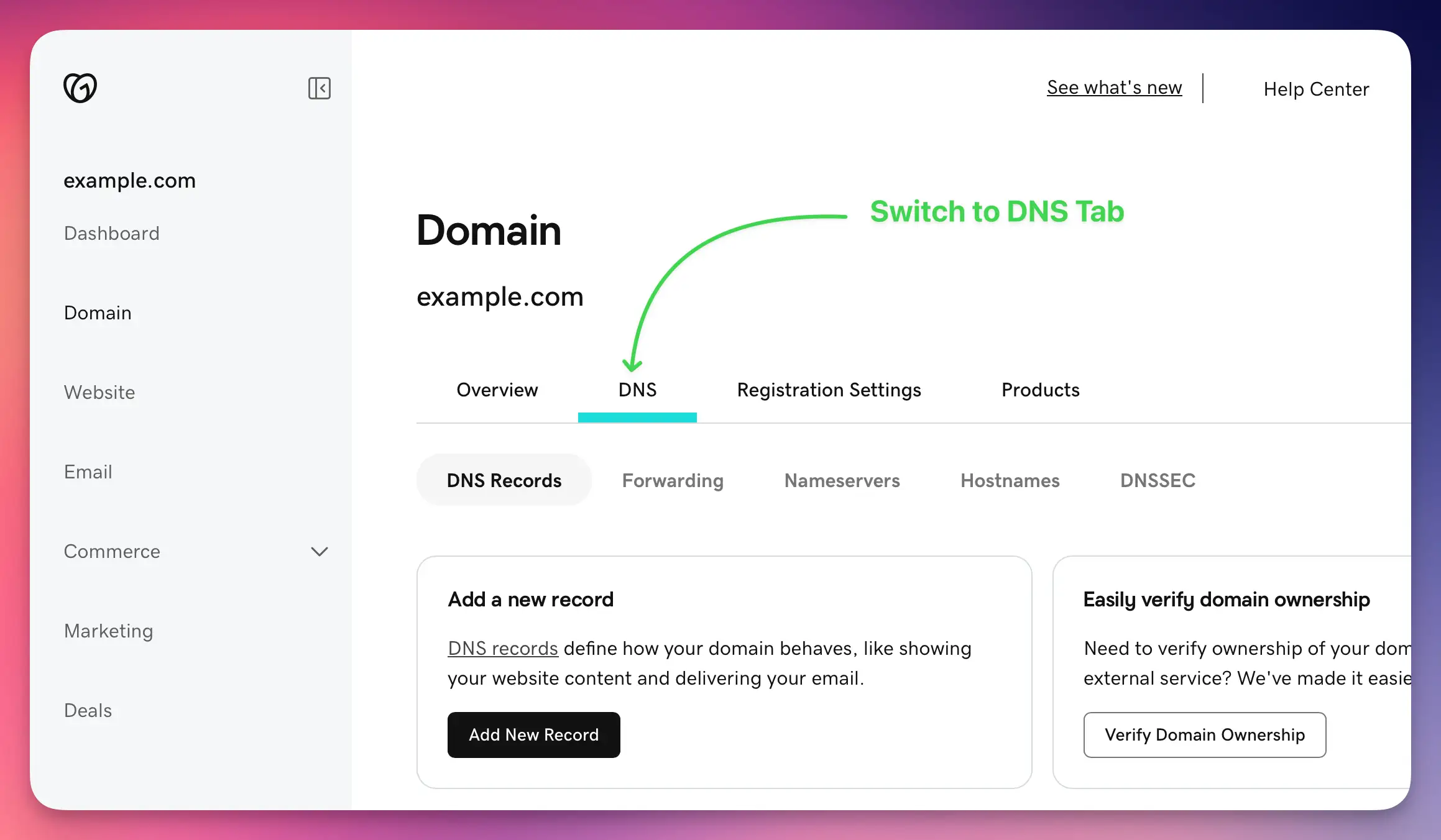
You'll need to add 4 CNAME records. Here's how to add the first one:
- Click the Add button in the DNS Management interface
- Select CNAME from the Type dropdown
- In the Host field, enter:
example - In the Points to field, enter:
example.test.sendgrid.net - Set TTL to 1 Hour (or leave default)
- Click Save
Repeat this process for the remaining CNAME records for example:
bbb._domainkey→bbb.domainkey.example.test.sendgrid.netbbb2._domainkey→bbb2.domainkey.example.test.sendgrid.netbento→ga.bentoemail.com
System > DNS in the menu.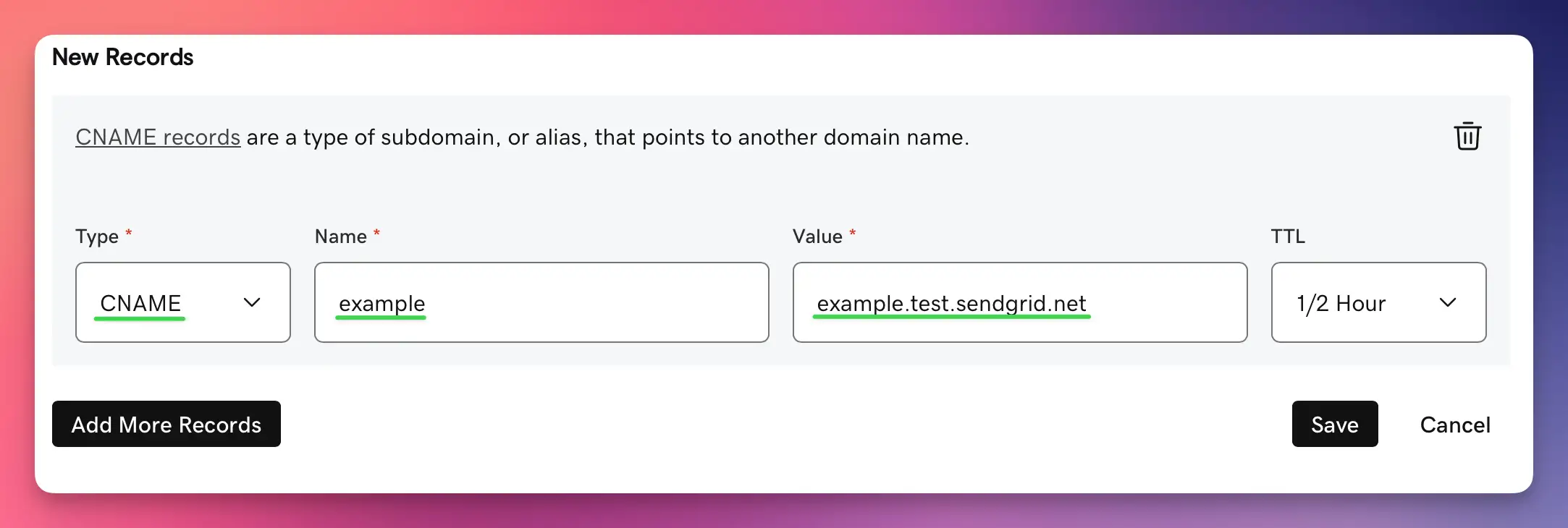
Next, add 2 TXT records. Start with the DKIM record:
- Click the Add button again
- Select TXT from the Type dropdown
- In the Host field, enter:
bentoEXAMPLE._domainkey - In the TXT Value field, enter the full DKIM key (starts with k=rsa; p=...)
- Set TTL to 1 Hour
- Click Save
Then add the DMARC record:
- Click Add again
- Select TXT from the Type dropdown
- In the Host field, enter:
_dmarc - In the TXT Value field, enter:
v=DMARC1; p=quarantine; adkim=s - Set TTL to 1 Hour
- Click Save

After adding all 6 DNS records, you need to verify them in Bento:
- Return to Bento and navigate to
System > DNS - Wait 5-10 minutes for DNS propagation (can take up to 48 hours in some cases)
- Click the Check button next to each DNS record
- Properly configured records will show a green checkmark and blue text
- If any records fail verification, double-check the values and TTL settings
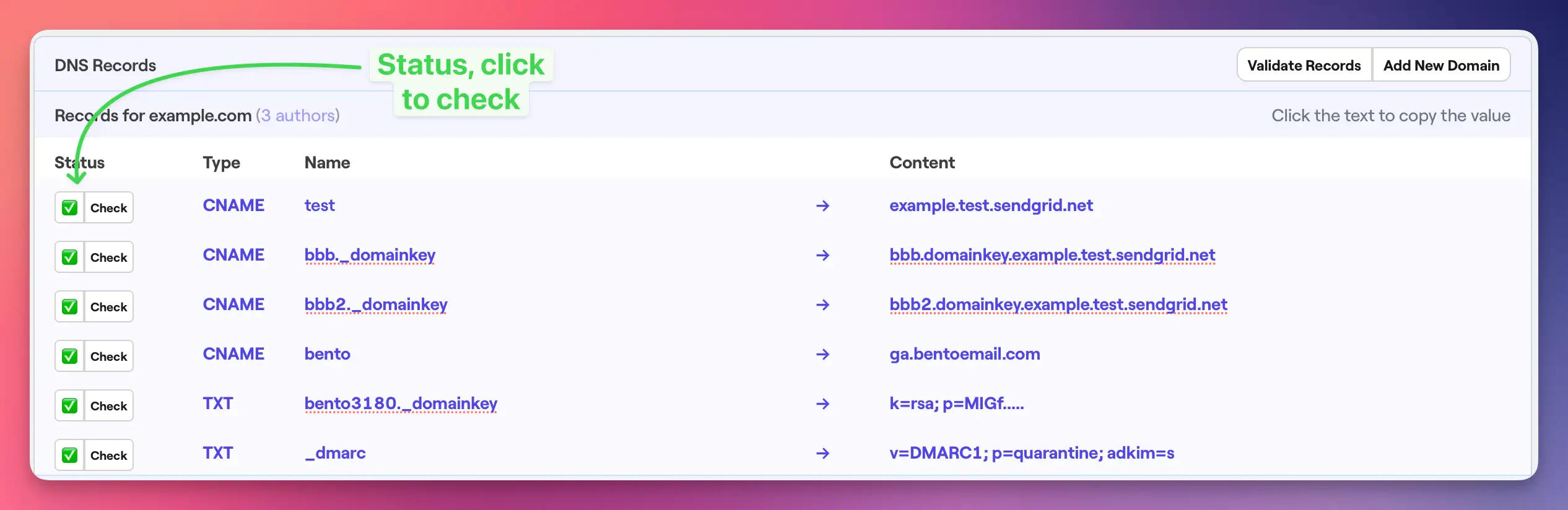
Once complete, your GoDaddy DNS records should be as follows:
All 6 records should be visible in your DNS management interface with:
- 4 CNAME records with proper Host and Points to values
- 2 TXT records with proper Host and TXT Value content
- All records showing TTL of 1 Hour (or your chosen value)
GoDaddy Notes
- Field Names: GoDaddy uses "Host" and "Points to" for CNAME records, and "Host" and "TXT Value" for TXT records
- TTL Options: GoDaddy offers preset TTL values like 1 Hour, 30 minutes, etc.
- Character Limits: Long TXT records may need to be split into multiple quoted strings
- Propagation: GoDaddy DNS changes typically propagate within 1-4 hours
Troubleshooting
If you encounter issues:
- Records not verifying: Double-check that all values match exactly what's shown in your Bento account
- Long TXT records: Split DKIM keys into multiple quoted strings if they exceed character limits
- DNS propagation: Wait up to 48 hours for global DNS propagation
- TTL settings: Use 1 Hour TTL for faster propagation during setup
Next Steps
Once all DNS records are verified in Bento:
- Your domain is now authenticated for email sending
- You can start sending emails with improved deliverability
- Monitor your email performance in the Bento dashboard
If you have any questions, feel free to ask in the Bento Discord!