



Send WordPress Transactional Emails Through Bento
This guide shows you how to route your WordPress transactional emails through Bento. Setup takes about five minutes with the official plugin.
5 Minute Setup Guide
1
Download the latest Bento WordPress plugin zip.
2
After activating the plugin, open the Bento settings page from your WordPress admin menu.
3
If you have not already, generate your Bento API keys from your teams screen. Fill in the following keys:
- Site Key
- Publishable Key
- Secret Key
4
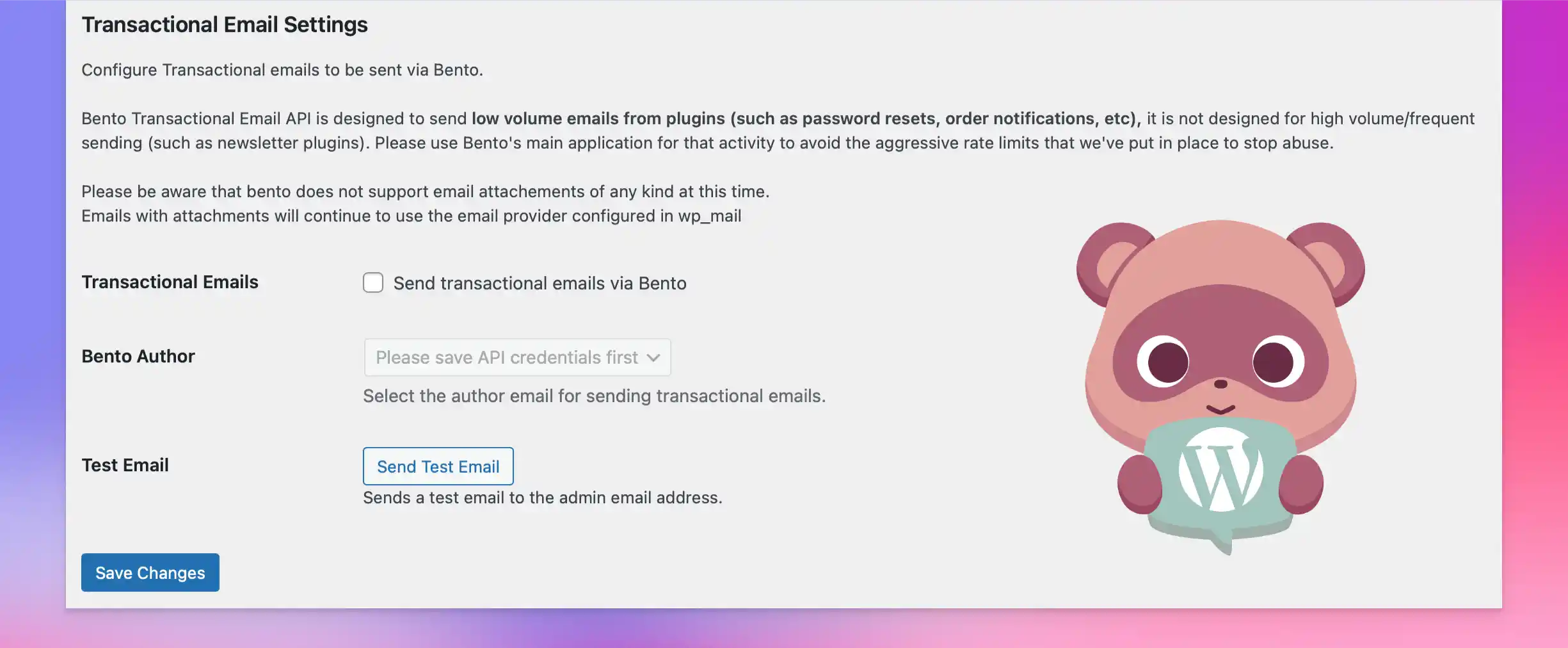
This tells the plugin to route your WordPress transactional emails through Bento.
5
Click save to apply your changes.
6
Once you save the settings the plugin will display a list of your configured authors in the from drop down.
7
The test email will be sent to the email address of the WordPress admin. We suggest doing this to ensure all settings are correct and you are happy with the selected author.
Features
- Seamless integration with WordPress's native
wp_mail()function - Queue system for reliable email delivery
- Detailed logging and error tracking
- Support for HTML emails
- Fast email processing
- Fallback to WordPress mail for emails with attachments
Configuration Options
Required Settings
- Site Key: Your Bento site identifier
- Publishable Key: Your Bento public API key
- Secret Key: Your Bento private API key
- From Email: Configured Author in your Bento Account
Optional Settings
- Enable Tracking: Track email opens and clicks (Bento)
- Debug Logging: Enable detailed logging for troubleshooting (WordPress debug)
What Gets Sent Through Bento?
When enabled, the plugin will route all WordPress transactional emails through Bento, including:
- Password reset emails
- New user notifications
- Comment notifications
- Contact form submissions
- WooCommerce order confirmations
- Custom plugin notifications
What Does NOT get Sent Through Bento?
- Emails with attachments
- Marketing or other plugin mail.
Benefits of Using Bento for Email
- Improved deliverability with dedicated email infrastructure
- Email tracking and analytics
- Detailed delivery insights
- Reliable queue system for handling email volume
- Comprehensive logging for troubleshooting
Troubleshooting
If emails aren't being delivered:
- Verify your API credentials are correct
- Check the test email functionality
- Review WordPress debug logs for any errors
- Ensure your From Email is properly configured
- Verify Bento service status
Need Help?
For support with the Bento WordPress plugin:
- Email: support@bentonow.com
- Discord
- Documentation: https://docs.bentonow.com
Note: Make sure to test the email functionality thoroughly on a staging site before enabling in production.