



How to Set Up a Confirmed Opt-In (COI) Flow in Bento
This guide shows you how to build a confirmed opt-in (COI) flow inside Bento.
Confirmed opt-in (COI) is a strong practice for deliverability, compliance, and security. It confirms that the person receiving email explicitly asked for it, which reduces spam complaints and improves list quality. It also helps prevent typos from sending private or valuable information to the wrong address.
COI works best with basic form protection. Follow the deliverability guide, rate limit your forms, and add bot protection where appropriate. This protects your users and your email performance.
Managing Opt-ins in Bento
Bento offers complete flexibility in how you manage your users and their subscription status. Some users may want to run a COI automation for every single sign up, while others may want to run it for only certain sign ups as they may have confirmed the email elsewhere (i.e. after account sign up).
Before building your flow, we recommend mapping out the different ways someone can be added to your Bento account and deciding how you want to handle them.
i.e. you may want to run a COI flow after a blog sign-up but not after an account sign up.
Anything where someone could mistype an address, you probably will want to run COI.
Outline of the Flow
Here is an example confirmed opt-in flow:
Breakdown
- When someone signs up on the website we send in a custom event via the API. This could also be an event from Shopify, Stripe, WooCommerce, or another integration.
- We immediately unsubscribe them and leave a "double opt-in" reason. This lets you search and segment based on the unsubscribe reason later.
- Send a transactional email (which ignores the fact they are unsubscribed) with a link to confirm their subscription, like
https://yourdomain.com/double-opt-in. Make it a branded page with an offer or clear next steps so the confirmation feels worth the click. - Now that is set up we can use a "New Email Click" trigger to catch when they click the confirmation link. Filter this trigger to the exact confirmation URL or a unique token so unrelated clicks do not subscribe someone.
- Already Verified so we are skipping the COI steps and just subscribing them.
- We subscribe them or update the unsubscription from step 2.
- Update custom fields like
consented_via,consented_at, andconsent_sourceto record how they opted in. This is useful if you ever get audited or a user claims they never subscribed.
Now that you understand how the flow works and what each step accomplishes, here is how to build it inside Bento.
Building the Flow
Building this flow is made up of two "paths".
Path 1: User signs up
Let's look at the first path, from say, your website form. This part of the flow is made up of 3 steps.
double opt-in. This allows you to later search and analyze the conversion rate of sign-ups vs double opt-ins.https://yourdomain.com/double-opt-in?token=unique-token. {{ visitor.confirmation_url | hyperlink: "Confirm Email" }}
Path 2: User clicks confirmation link
Now, we need to create a new path in the same flow for when the user clicks the confirmation link.
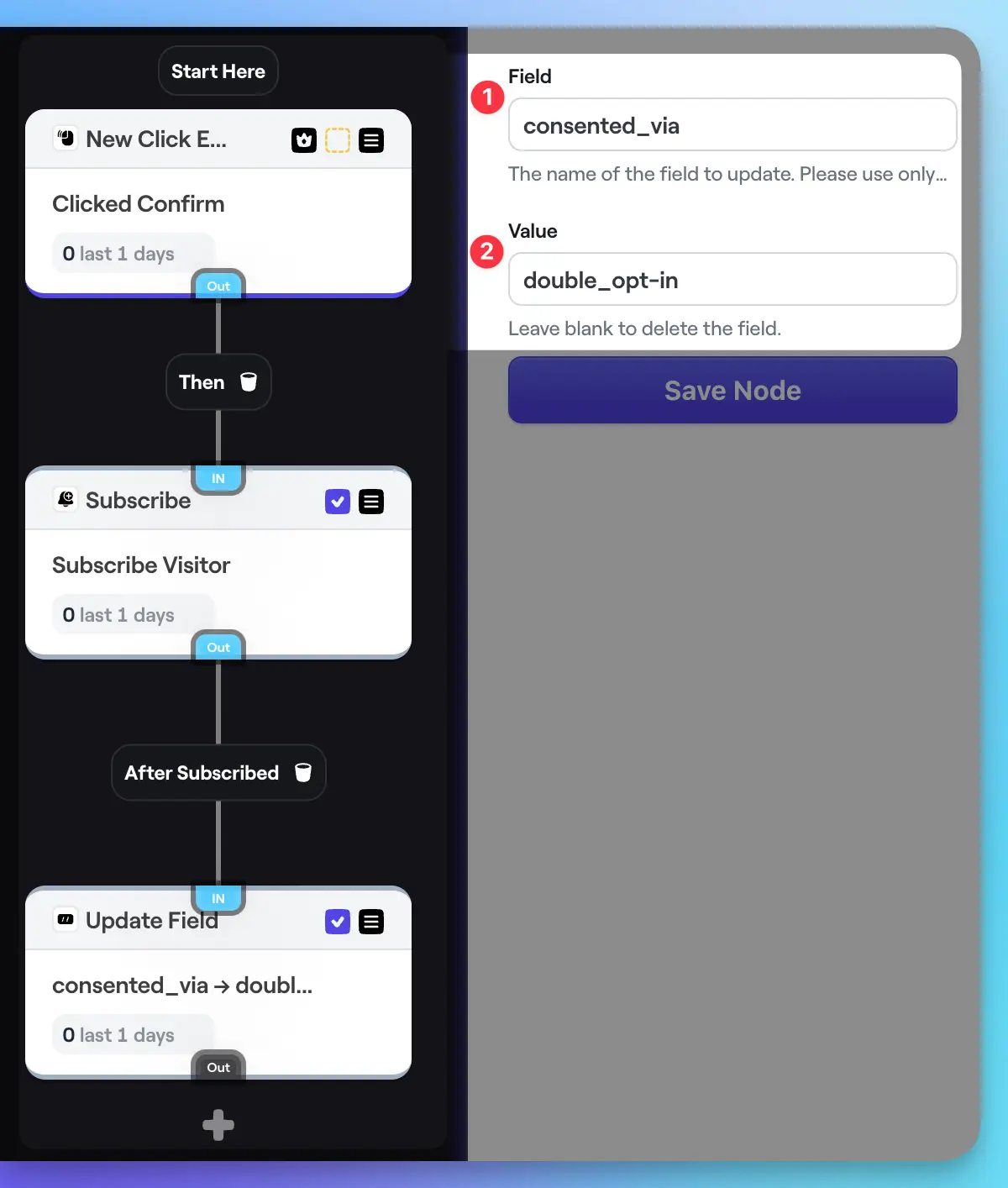
consented_via, consented_at, and consent_source. Name the field 1 anything you like. Both the name and value 2 support Liquid tags like {event} for dynamic use cases. Bonus: Customising for EU Customers
Many users expand on this basic flow by adding a check for European visitors. Here's how:
- After the initial sign up event, use a Split to check if the visitor is from the EU.
- If they are, proceed with the double opt-in flow - unsubscribe, send confirmation email, resubscribe on click.
- If they're not an EU customer, you can skip the confirmation and do nothing (or whatever else fits your use case).
This lets you apply the stricter consent requirements only where needed.
Key Takeaways
Setting up a double opt-in flow in Bento is straightforward once you understand the key concepts:
- Handle different opt-in methods differently
- Unsubscribe and leave a reason to enable segmenting
- Use transactional emails and filtered click triggers for the confirmation
- Record consent details on the user's profile
- Optionally check for EU customers to apply flow selectively
With these building blocks, you can create a consent flow that meets your unique needs and keeps you compliant.
And if you have any other questions, feel free to ask in the Bento Discord!